Tour and Getting Started List
After you import your .env during setup, your project page helps you with the
next steps: a short tour of the page, and a Getting started list that
ticks itself off as you go.
Before You Start
- You finished the first setup and
imported a
.env. If you skipped the import, there is no tour; the project page shows a paste box instead. - The Getting started list is shown to the owner and admins of a workspace that is still in its trial and has not subscribed yet.
The Tour
The first time you open the project after importing, EnvManager asks if you want a look around. Click Show me around to start, or I'll explore myself to skip it. You are only asked once.
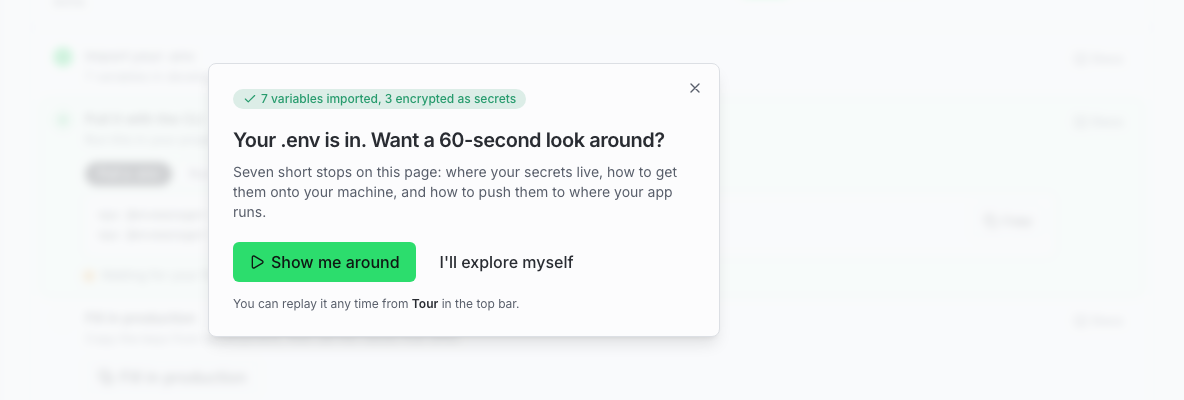
The tour has seven short stops on the project page:
- Environment tabs: one tab per environment, each with its own values.
- Your secrets: which values were encrypted, and how to reveal one.
- The toolbar: add, import and export variables.
- The CLI commands: how to get your variables onto your machine.
- Integrations: push variables to where your app runs.
- Team: invite people per environment.
- Getting started: the list that stays after the tour.
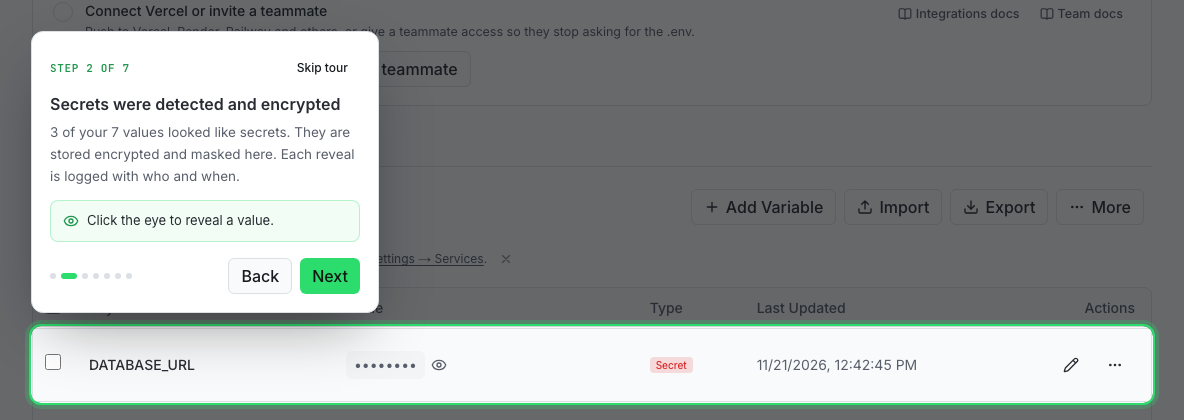
Each stop highlights one part of the page. The rest of the page is dimmed.
Moving through the tour
| To | Do this |
|---|---|
| Go to the next stop | Click Next, or press the right arrow key |
| Go back | Click Back, or press the left arrow key |
| Stop the tour | Click Skip tour, or press Esc |
On a phone, the tour skips stops that are hidden on small screens, such as the sidebar.
Want to see it again? Click Tour in the top bar of any project page.
The Getting Started List
The list sits at the top of your project page. Each step turns green on its own once EnvManager sees it happen. You do not need to tick anything.
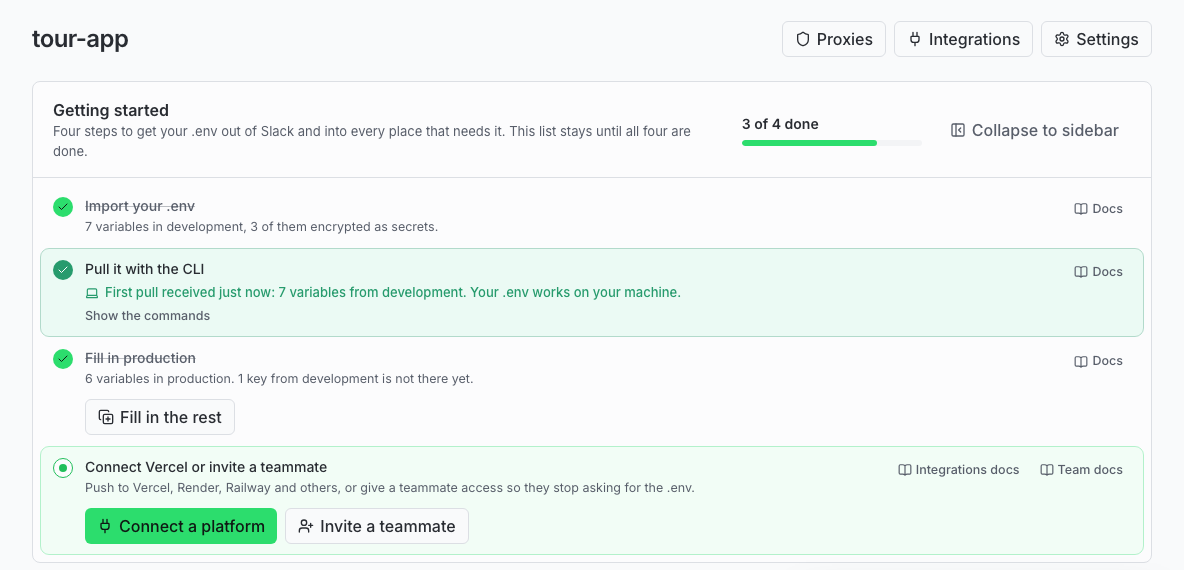
| Step | Turns green when |
|---|---|
| Import your .env | The project has at least one variable. |
| Pull it with the CLI | You run your first envmanager pull (or envmanager run) for this project. |
| Fill in production | Your production environment holds at least one variable with a value. |
| Connect a platform or invite a teammate | A platform such as Vercel or Render is connected, an invitation is sent, or a teammate has joined. |
If you told us where your app runs during setup, the last step names that platform, for example Connect Vercel or invite a teammate.
Pulling with the CLI
The CLI step shows the commands for this project, with the project and environment already filled in. Pick a tab:
- Pull a .env writes a
.envfile in your project folder. - Run without a .env starts your dev server with the variables passed in, without a file on disk.
- For Claude Code or Cursor shows how an AI agent can run a command with a secret filled in, without the agent seeing the value.
Click Copy, paste the commands into your terminal in the project folder, and run them. Keep the project page open: within a few seconds the step turns green and shows First pull received, with how many variables were pulled.
See the CLI Overview for everything else the CLI can do.
Fill in production
Production usually has the same keys as development, with different values. Click Fill in production to copy the keys over without typing them again.
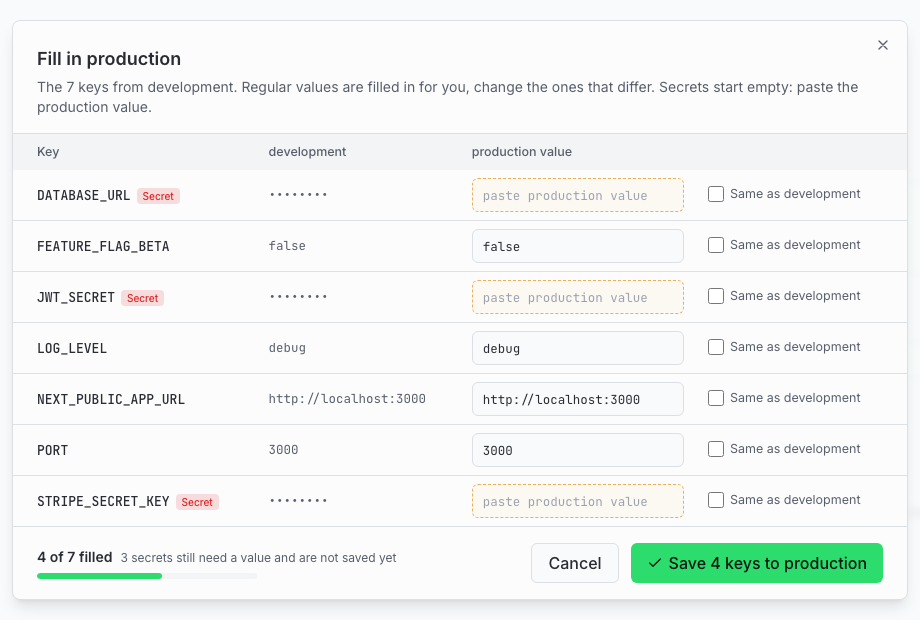
Check the regular values
Regular values are copied from development. Change the ones that are different in production. Changed values are marked changed.
Paste the secrets
Secrets start empty, with a dashed border, so a development password never ends up in production by accident. Paste the production value. If a secret really is the same in both, tick Same as development and it is copied when you save.
Save
The bottom of the window says how many keys have a value. Click Save N keys to production. Secrets you left empty are not saved; open Fill in the rest later to add them.
If your production environment is protected, saving sends the keys for approval instead of saving them straight away. See Protected Environments.
Collapsing and closing the list
- Click Collapse to sidebar to move the list into a small progress card in the sidebar. Click the card to bring the list back.
- Click the × on the sidebar card to close the list for good.
- When all steps are done, the list disappears by itself.
Your progress is saved with your account, so the list looks the same in every browser you sign in with.
On the dashboard
While the list is open, your dashboard shows a short version of it next to your projects, with a button for the next step. During the trial it also shows how many days are left.
Notes During the Trial
During your trial, owners and admins may see a small note in the bottom-right corner the first time something starts working: your first CLI pull, your first sync to a platform, or the first teammate who joins. It explains what keeps working after the trial ends and what pauses.
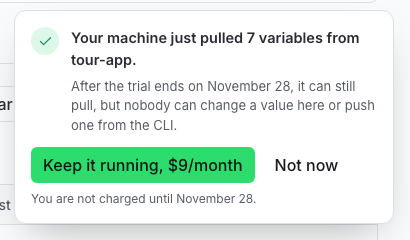
Click Not now to close it. Each note shows once, and never more than one a day. Paid workspaces never see them. See Billing for what the trial includes.
Common Questions
I ran the pull but the step is still waiting.
Check that you pulled the same project. The command on the list has the right project and environment filled in. The step also turns green if you open the project page later.
The list does not show up for me.
It shows for owners and admins of a workspace that is still in its trial and has not subscribed yet, once the project has variables. It is also hidden after you close it, once the workspace subscribes, and while a workspace is paused after its trial.
Can I get the list back after closing it?
Not at the moment. Everything on it is still available on the project page: the CLI commands, Integrations and Team.
Does EnvManager see my values to tick the steps?
No. The steps only count things, such as how many variables production has or whether a pull happened. Values are never read for this.