Bulk Updates
When you need to change a variable's value across multiple environments — for example, rotating an API key or updating a database host — the Bulk Update feature lets you do it in one operation instead of editing each environment individually.
Before You Begin
Bulk Update works across all environments in a project. You need write access to the environments you want to update.
To use Bulk Update, you need:
- An EnvManager account with write access to a project
- The same variable key existing in multiple environments
How to Bulk Update Variables
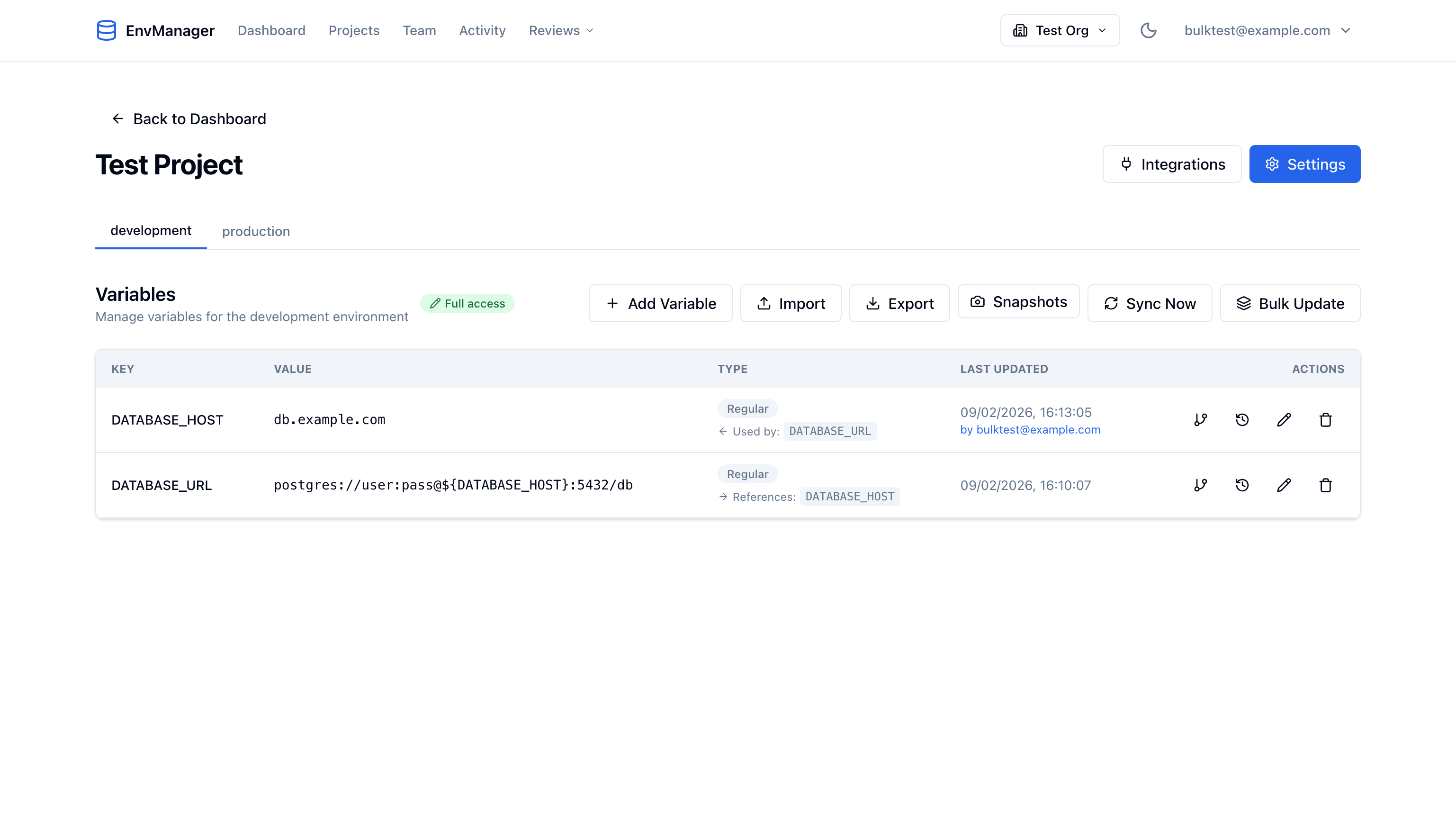
Step 1: Open Bulk Update
Navigate to your project and click the Bulk Update button in the toolbar.
Step 2: Search for a Variable
Type part of the variable key in the search box. Results show each matching key and how many environments it exists in.
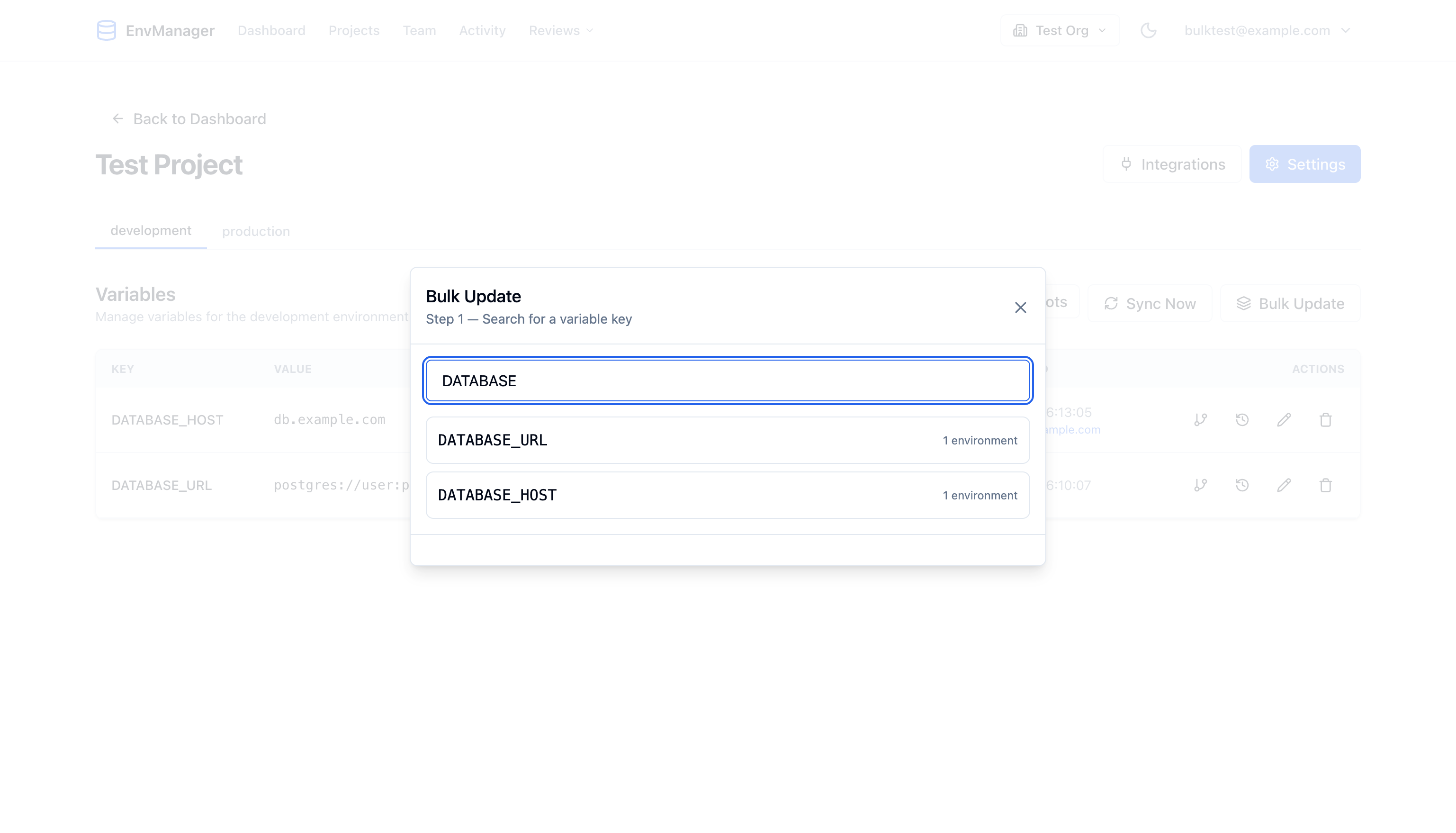
Click a variable key to select it.
Step 3: Select Environments
Choose which environments to include in the update. All environments are pre-selected by default. Deselect any you want to skip.
Protected environments are labeled with a shield badge — changes to these environments will require approval before taking effect.
Step 4: Configure New Values
Choose how to set the new values:
- Same value for all — Enter one value that applies to every selected environment
- Different per environment — Enter a separate value for each environment
For secret variables, the input uses a password field to hide the value.
Step 5: Preview and Apply
Review the changes before applying:
- Each row shows the environment name, old value, new value, and status
- Non-protected environments show Will apply — changes take effect immediately
- Protected environments show Pending approval — changes are submitted for review
Optionally add a reason for the change (shown in the audit log), then click Update.
Step 6: Review Results
After applying, a summary shows how many changes were applied immediately and how many are pending approval.
Protected Environments
When a bulk update includes protected environments:
- Non-protected environment changes are applied immediately as a single atomic operation (all succeed or all fail)
- Protected environment changes are submitted as pending changes that require approval
- The two groups are independent — a failure in non-protected environments does not affect pending changes
Audit Trail
All bulk updates are recorded in the audit log with:
- A shared batch ID linking all changes from the same operation
- The reason you provided (if any)
- The user who performed the update
- Timestamps for each change