Two-Factor Authentication
Two-factor authentication (2FA) adds an extra layer of security to your account. When enabled, you need both your password and a code from your authenticator app to sign in.
Before You Begin
You need an authenticator app installed on your phone. Popular options include:
- Google Authenticator
- Authy
- Microsoft Authenticator
- 1Password
Enabling 2FA
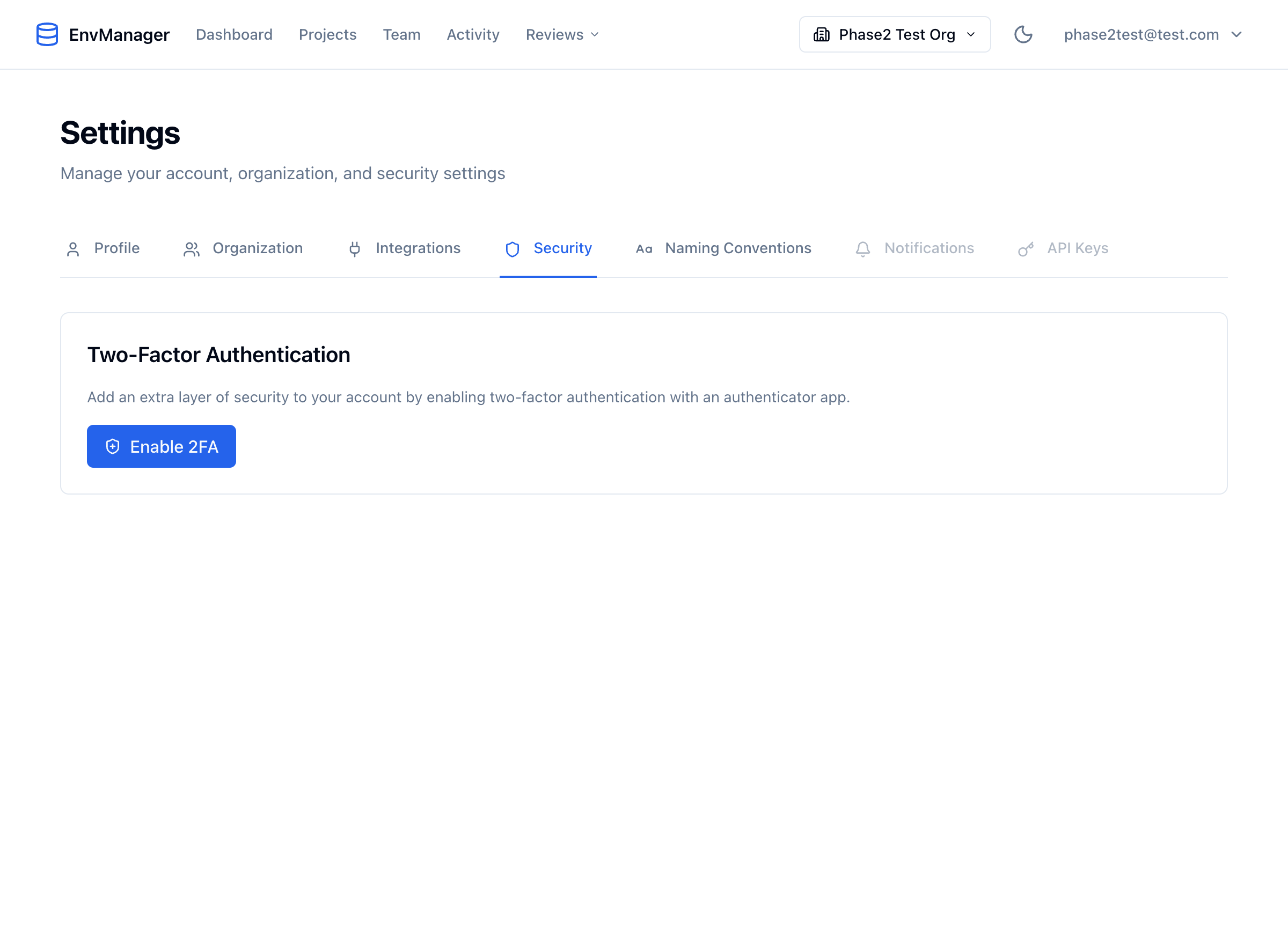
Navigate to Settings and select the Security tab to find the Enable 2FA button.
Open Security Settings
Go to Settings and click the Security tab.
Start Setup
Click Enable 2FA. A QR code will appear on screen.
Scan QR Code
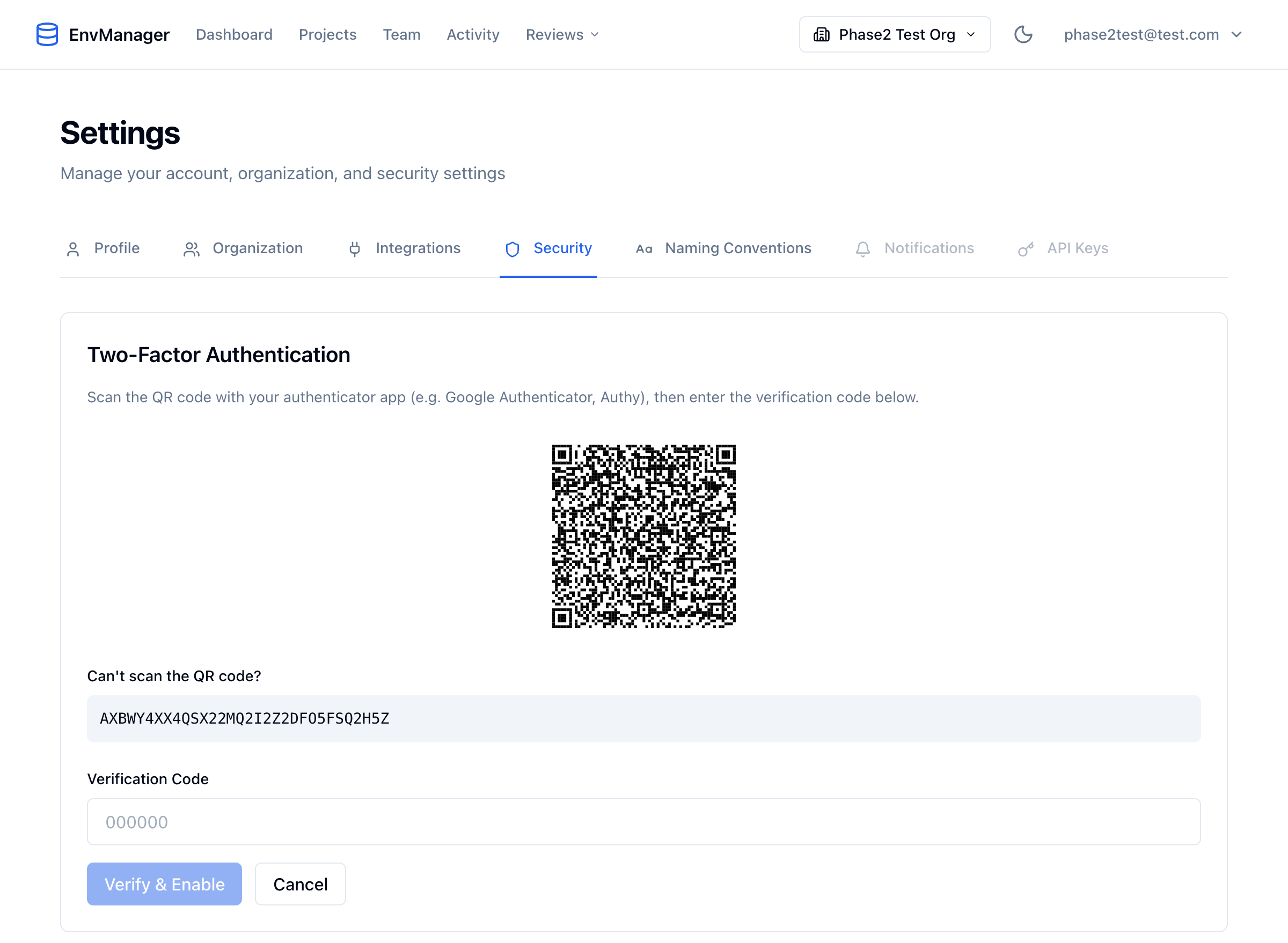
The 2FA setup screen showing the QR code, manual entry key, and verification code input.
Open your authenticator app and scan the QR code. If you cannot scan the code, click "Can't scan the QR code?" to see the manual entry key.
Verify Setup
Enter the 6-digit code shown in your authenticator app and click Verify & Enable.
Save Recovery Codes
After verification, a modal displays 10 recovery codes. These codes let you sign in if you lose access to your authenticator app.
- Click Download .txt to save the codes as a file
- Click Copy to clipboard to copy all codes
- Check "I have saved these codes in a safe place"
- Click Done
Save your recovery codes securely. They are shown only once and cannot be retrieved later. Each code can only be used once.
Signing In with 2FA
After enabling 2FA, your sign-in process adds one step:
Enter Your Password
Sign in with your email and password as usual.
Enter Verification Code
On the verification screen, enter the 6-digit code from your authenticator app and click Verify.
Using a Recovery Code
If you lose access to your authenticator app, you can use a recovery code to sign in.
Start Sign In
Enter your email and password as usual.
Switch to Recovery Code
On the verification screen, click Lost your device? Use a recovery code.
Enter Recovery Code
Type one of your saved recovery codes in the format XXXXX-XXXXX and click Verify Recovery Code.
Each recovery code works only once. After using a code, it is permanently consumed. If you have fewer than 3 codes remaining, you will see a warning to regenerate new codes.
Managing Recovery Codes
Viewing Remaining Codes
Go to Settings > Security. The recovery codes section shows how many unused codes you have left.
Regenerating Codes
If your codes are running low or you suspect they have been compromised:
Open Security Settings
Go to Settings and click the Security tab.
Start Regeneration
Click Regenerate Recovery Codes.
Verify Your Identity
Enter the 6-digit code from your authenticator app to confirm.
Save New Codes
A new set of 10 recovery codes is displayed. Save them securely. All previous codes are invalidated.
Regenerating codes immediately invalidates all your previous recovery codes. Make sure to save the new ones.
Disabling 2FA
Open Security Settings
Go to Settings and click the Security tab.
Start Disable Process
Click Disable 2FA.
Confirm with TOTP Code
Enter the 6-digit code from your authenticator app and click Confirm.
After disabling, your recovery codes are deleted and you will only need your password to sign in.
Tips & Best Practices
- Save recovery codes in multiple places -- Store them in a password manager and print a physical copy
- Regenerate codes periodically -- If you suspect your codes may have been seen by someone else
- Don't share codes -- Recovery codes grant full access to your account
- Keep your authenticator app updated -- Ensure your phone is backed up to avoid losing your authenticator
Related Topics
Account Settings
Manage your profile and password.
Roles & Permissions
Understand access control in your organization.