Importing Variables
When you're migrating an existing project to EnvManager or setting up a new environment from configuration files, manually adding each variable one by one can be tedious and error-prone. The Import feature lets you bring in multiple variables at once from your existing configuration files.
Why Use Import?
The Import feature is useful when you:
- Migrate existing projects — Move your current
.envfiles into EnvManager without re-typing everything - Set up new environments — Quickly populate a staging or production environment based on an existing configuration
- Restore from backups — Re-import variables from exported configuration files
- Share configurations — Import variables that a team member has shared with you
Supported File Formats
EnvManager can import variables from several common configuration file formats:
| Format | File Extensions | Description |
|---|---|---|
| .env | .env, .env.local, .env.example | Standard dotenv format used by most frameworks |
| JSON | .json | Key-value JSON objects |
Before You Begin
To import variables, you need access to a project and environment. If you haven't created a project yet, see Your First Variables.
Make sure you have your configuration file ready. The file should contain valid key-value pairs in one of the supported formats.
How to Import Variables
Open the Import Dialog
Navigate to your project and select the environment where you want to import variables. Click the Import button in the toolbar above your variables list.
Upload Your Configuration
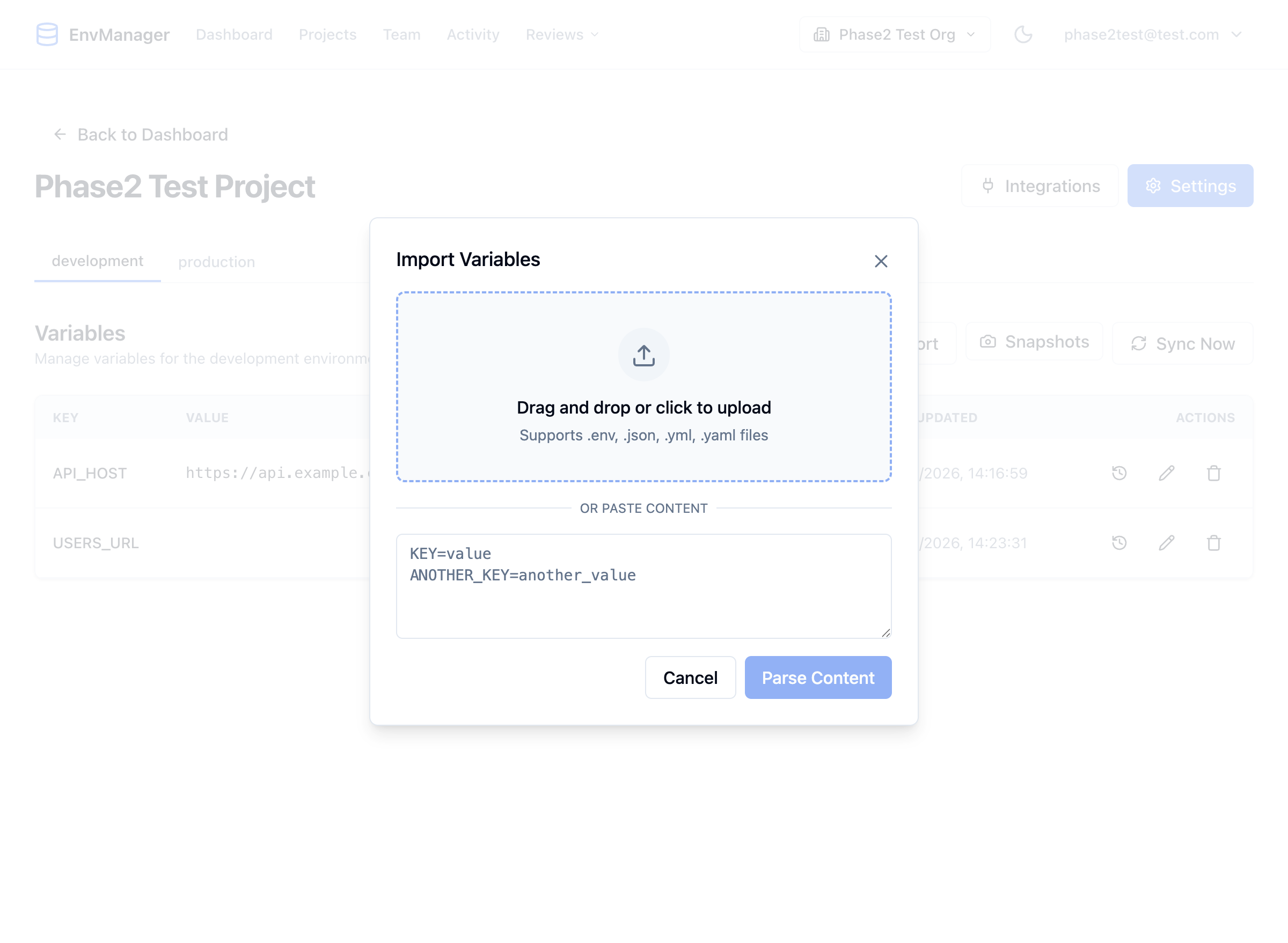
The import dialog supports drag-and-drop file upload or pasting content directly.
Drag your .env or .json file directly onto the drop zone. You can also click the drop zone to open a file browser and select your file.
Alternatively, paste configuration content directly into the text area if you don't have a file.
Review the Preview
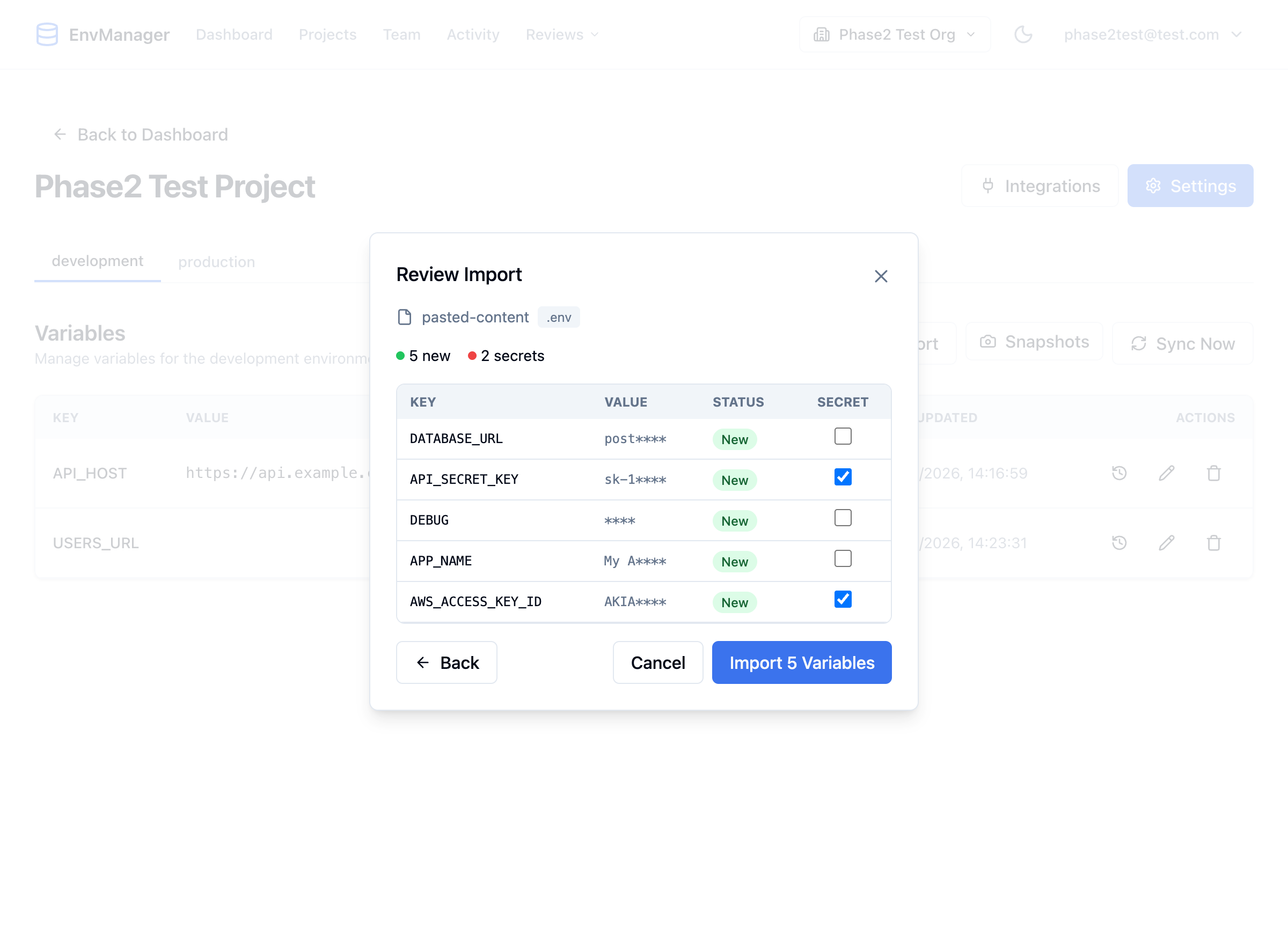
The import preview shows all parsed variables. Variables with sensitive names like API_SECRET_KEY and AWS_ACCESS_KEY_ID are automatically marked as secrets.
EnvManager shows you a preview of all variables that will be imported. The preview displays:
- Key — The variable name
- Value — A preview of the value
- Status — Whether this is a new variable or one that already exists
- Secret — Whether this variable will be stored as an encrypted secret
The summary shows how many variables are new, how many already exist, and how many are marked as secrets.
Adjust Secret Detection
EnvManager automatically detects variables that likely contain sensitive information based on their names. Variables with keys containing SECRET, KEY, TOKEN, PASSWORD, PRIVATE, AUTH, or CREDENTIAL are automatically marked as secrets.
You can check or uncheck the Secret checkbox for any variable in the preview.
Handle Conflicts
If any variables already exist in the environment, choose how to handle them:
- Skip existing (default) — Only import new variables
- Overwrite all — Replace existing variables with imported values
Complete the Import
Click Import X Variables to finish. EnvManager will add the variables, encrypt any marked as secrets, and log the import.
Understanding the Preview
| Status | Color | Meaning |
|---|---|---|
| New | Green | This variable doesn't exist yet and will be added |
| Exists | Yellow | This variable already exists in the environment |
Tips for Successful Imports
Review before importing — Always check the preview, especially the secret detection. It's easier to mark a variable as secret during import than to change it later.
- Clean up your source file first — Remove commented-out or unused variables before importing
- Use consistent naming — Standardize naming conventions before import
- Import to development first — When migrating, import to development first, verify, then import to staging and production
- Check for duplicates — The conflict detection helps avoid accidentally overwriting values
Common File Format Examples
.env Format
DATABASE_URL=postgres://user:password@localhost:5432/mydb
API_KEY=sk-1234567890abcdef
DEBUG=true
APP_NAME=My Application
JSON Format
{
  "DATABASE_URL": "postgres://user:password@localhost:5432/mydb",
  "API_KEY": "sk-1234567890abcdef",
  "DEBUG": "true",
  "APP_NAME": "My Application"
}
Next Steps
Variables Overview
Learn how to edit, delete, and organize your variables after import.
Working with Secrets
Understand how imported secrets are protected.
Environments
Manage variables across different environments.