Fallback Values
Sometimes a variable needs a safety net — a default value that kicks in when the main value is empty or hasn't been set yet. Fallback values provide exactly that, giving your configuration a reliable baseline without requiring every variable to have a value at all times.
Why Use Fallback Values?
Fallback values are useful when you:
- Set up new environments — Pre-configure sensible defaults so new environments work out of the box
- Handle optional overrides — Let teams override a value when needed, but fall back to a default otherwise
- Protect against accidental deletion — If someone clears a variable's value, the fallback takes over instead of leaving a gap
- Stage gradual rollouts — Set the new value as fallback first, then promote it to the main value when ready
Before You Begin
Fallback values are stored alongside the variable and are visible to anyone with access to the environment. They are not encrypted, even if the variable itself is a secret.
To set fallback values, you need:
- An EnvManager account with access to a project
- An existing variable (or create one during this process)
See Variables Overview if you haven't created any variables yet.
Setting a Fallback Value
Open the Variable Form
Either click Add Variable to create a new variable, or click the edit icon on an existing variable.
Enable the Fallback Toggle
Check the Set fallback value checkbox. A new input field appears below it with the description "Default value used when the main value is empty."
Enter the Fallback Value
Type your fallback value in the new field. This value will be used whenever the main Value field is empty.
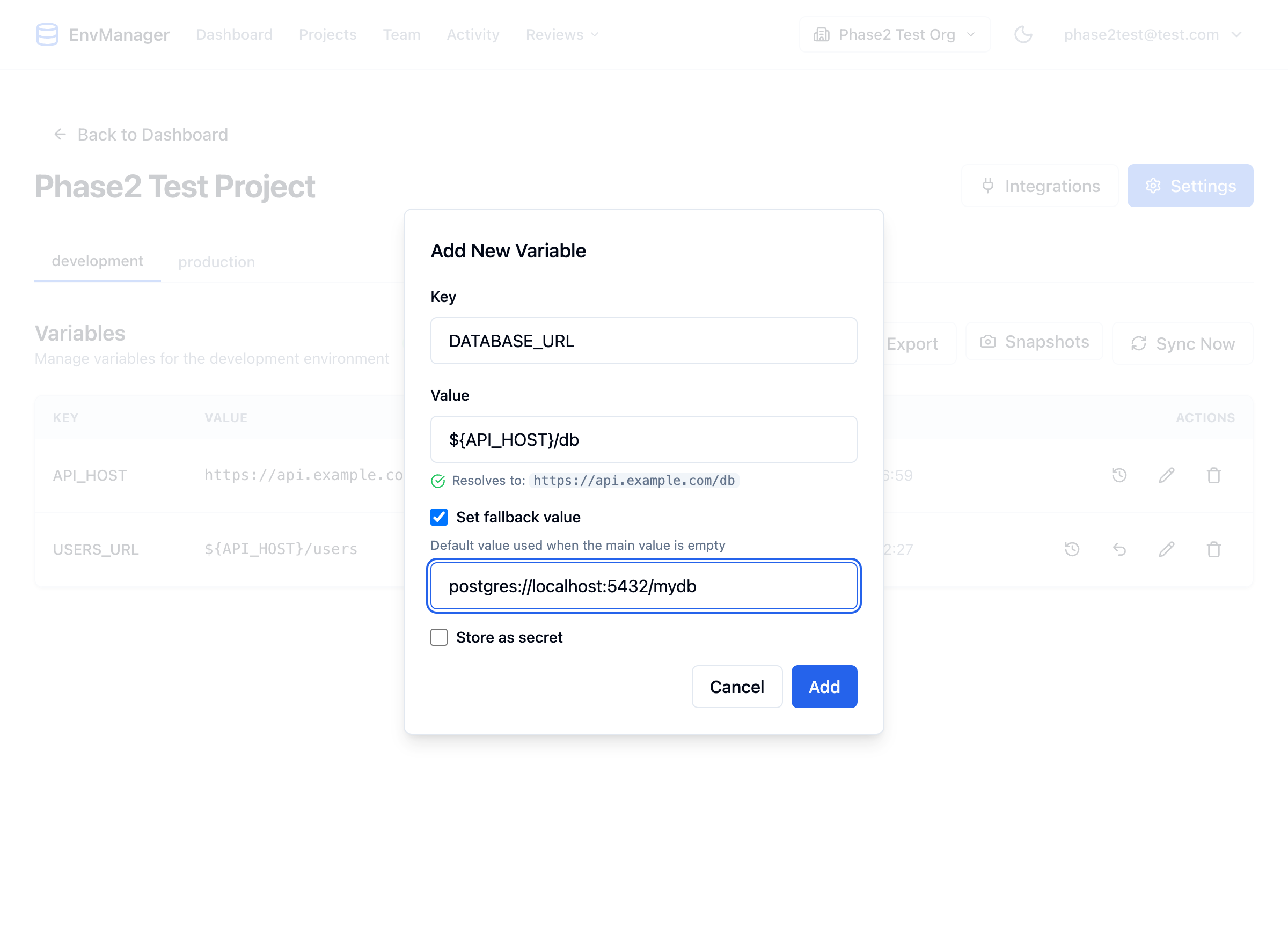
The fallback value field appears when the checkbox is enabled.
Save the Variable
Click Add (or Save when editing) to store the variable with its fallback.
How Fallback Indicators Work
The variables list shows a visual indicator when a fallback value is active — meaning the main value is empty and the fallback is being used.
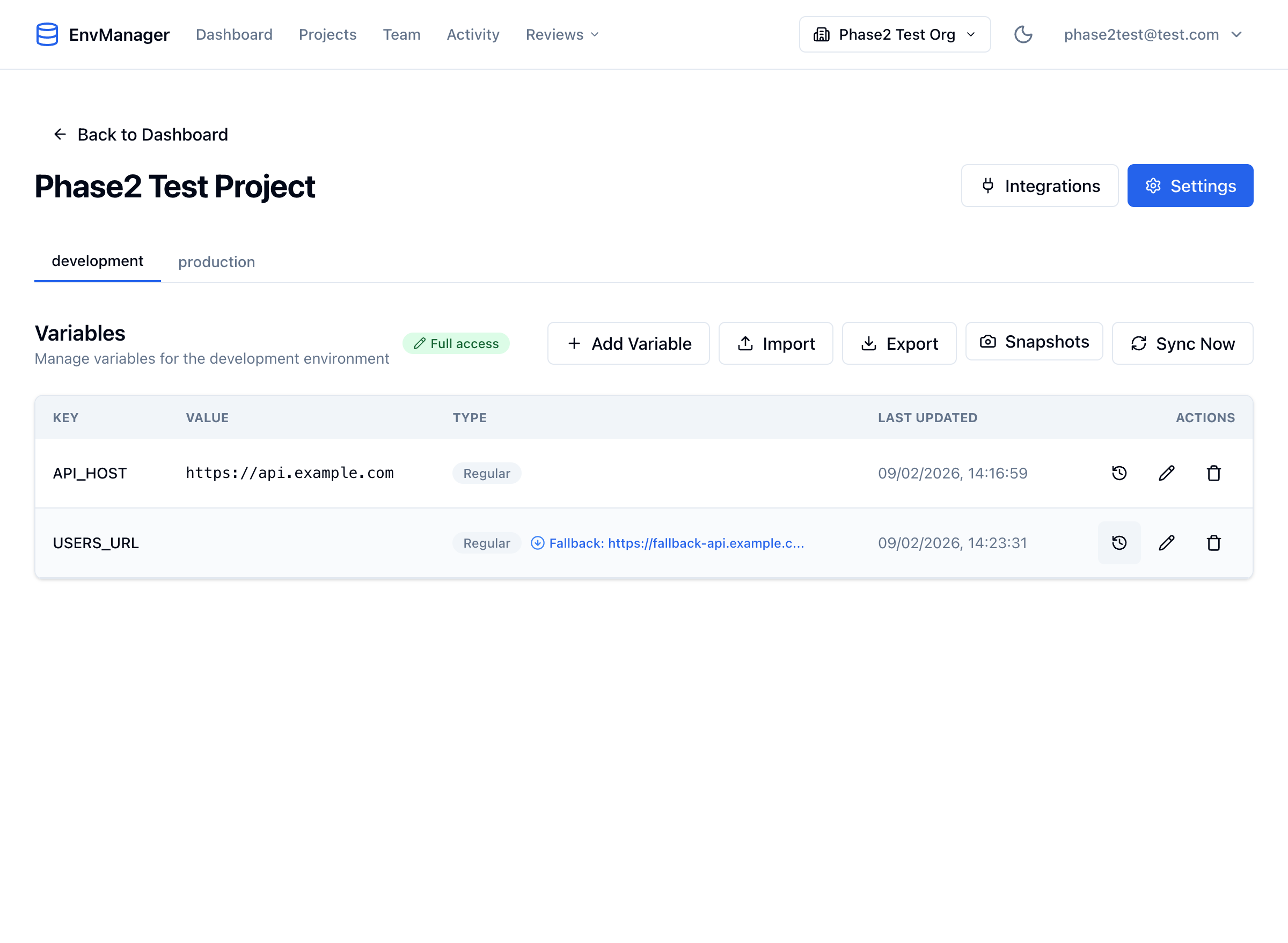
The green fallback indicator shows which value is currently being served.
| State | What You See |
|---|---|
| Main value set | The main value is displayed normally, no fallback indicator |
| Main value empty, fallback set | A green "Fallback" indicator shows the active fallback value |
| No value, no fallback | The value column is empty |
Resetting to Fallback
If a variable has a fallback value configured, you can quickly clear the main value and let the fallback take over:
Find the Variable
Locate the variable in your list. It must have a fallback value configured (you'll see the fallback indicator if the main value is already empty).
Click the Reset Button
Click the undo/reset icon in the Actions column. This clears the main value and activates the fallback.
Resetting to fallback only clears the main value. The fallback value itself remains unchanged. You can set a new main value at any time to override the fallback again.
Fallback Values with the CLI
The EnvManager CLI can include fallback values when pulling variables:
# Pull variables with fallback values included
envmanager pull --include-fallbacks

# Short form
envmanager pull -F

# Combine with reference resolution
envmanager pull --resolve-references --include-fallbacks
Without --include-fallbacks, the CLI only returns the main value. If the main value is empty, the variable is returned with an empty string.
Tips
Fallbacks work with references too. You can use ${VAR} syntax in your main value and set a plain fallback. If the references can't be resolved (because a referenced variable was deleted), the fallback provides a safety net.
- Use fallbacks for environment-specific defaults — Set
localhostas fallback forDB_HOSTin development, so it works without explicit configuration - Don't use fallbacks as a substitute for required values — If a value is always needed, set it directly rather than relying on a fallback
- Document non-obvious fallbacks — If a fallback value isn't self-explanatory, add context in the variable key naming
Next Steps
Variable References
Use ${VAR} syntax to reference other variables.
Variables Overview
Learn the basics of creating and managing variables.
Environments
Manage variables across different environments.