Quick Start
Get started with EnvManager in just a few minutes.
1. Create an Account
Visit EnvManager and create your account. You can sign up with your email address.
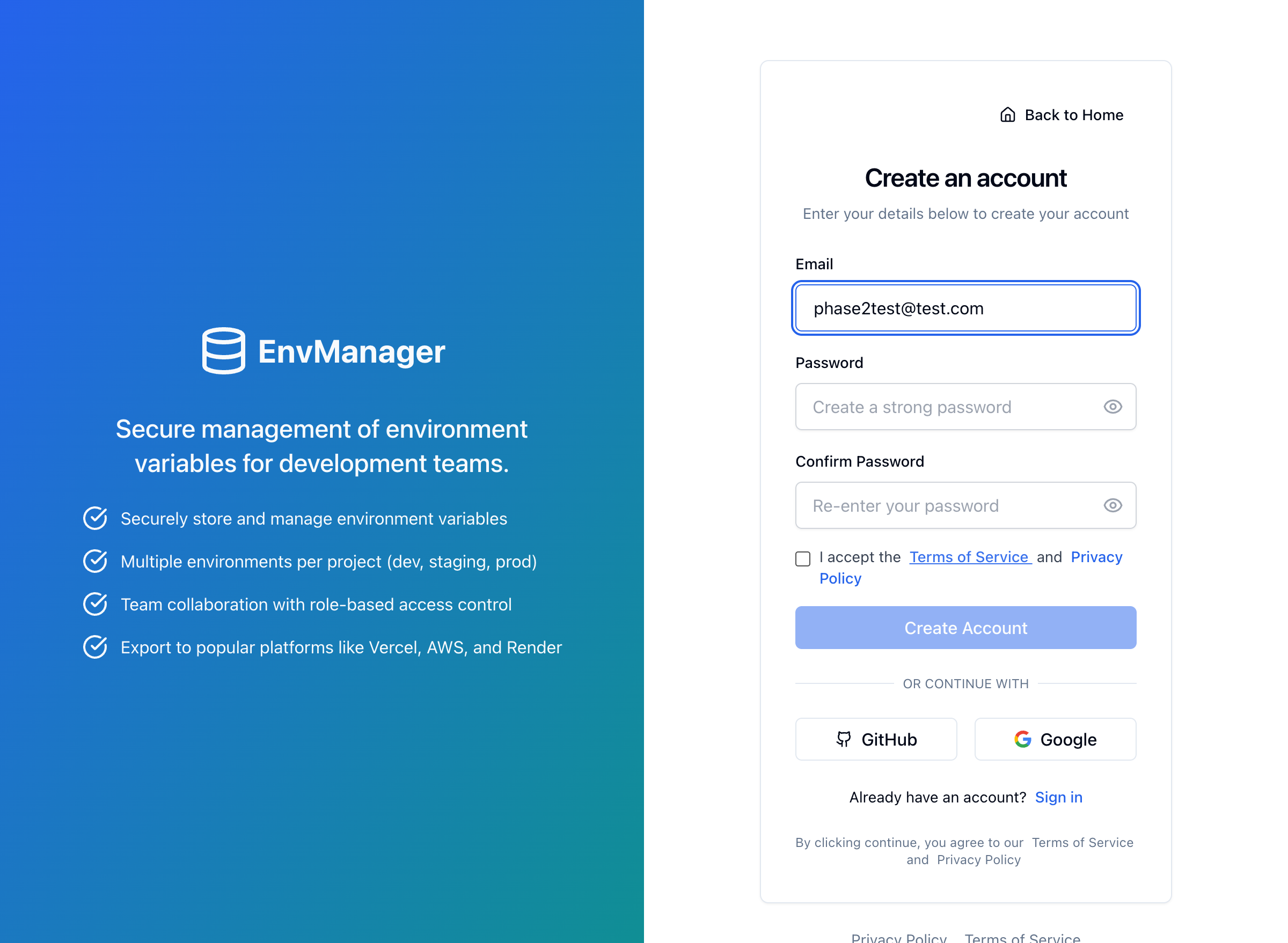
Enter your email and password to create a new account.
2. Your Workspace Is Created For You
There's no setup wizard. EnvManager automatically creates your organization, a project called My First Project, and two environments (development and production), then takes you straight to the project page. You can rename any of it later.
3. Paste Your .env
Your project starts empty, with a paste box ready and focused.
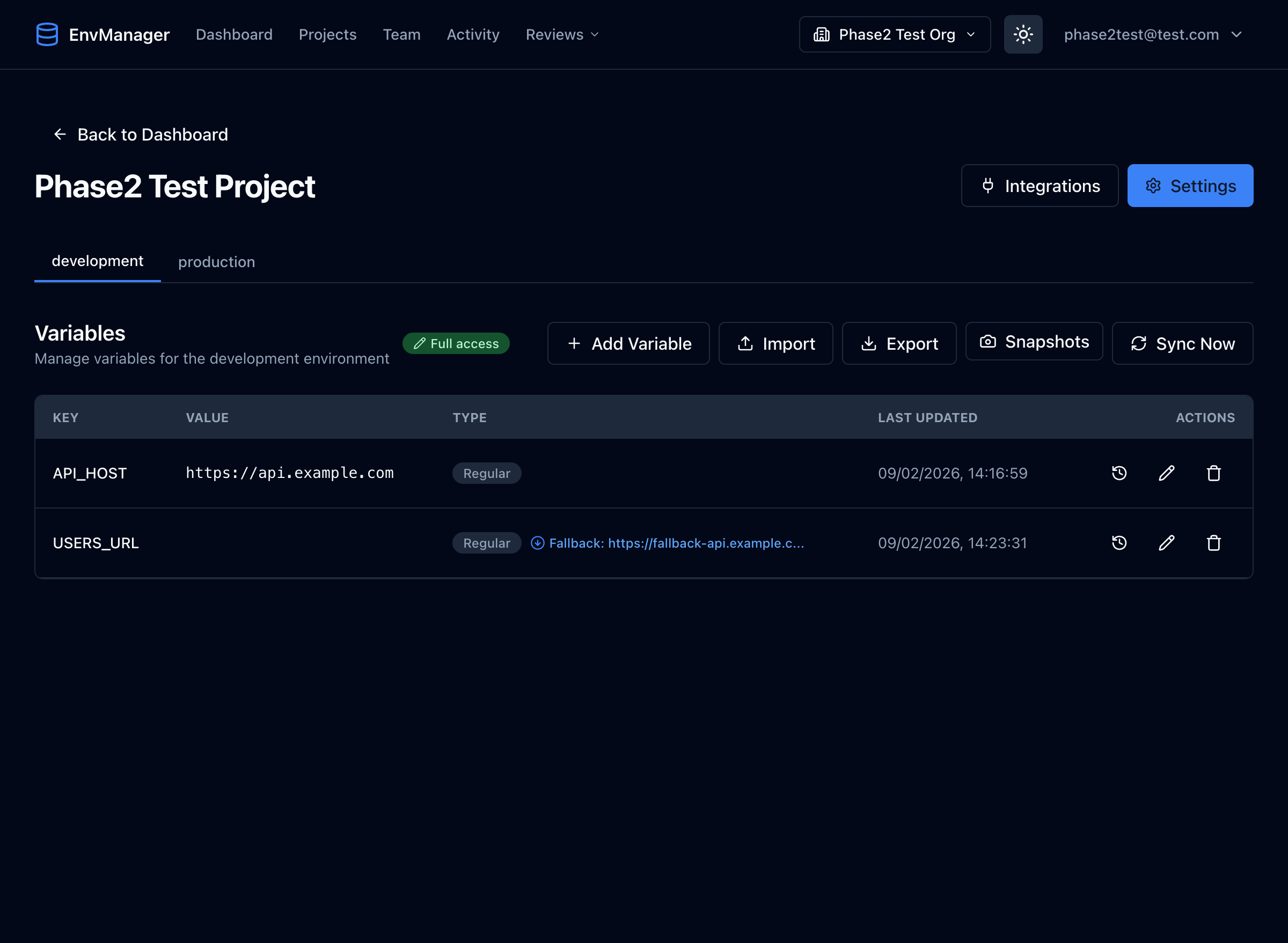
Switch between environments using the tabs, and manage your variables from the table.
- Paste the contents of your existing
.envfile into the box - Check the count — it tells you how many variables were found and how many look like secrets
- Click Continue with N variables
- Review the table, adjust which values are secrets, and click Import
Nothing is saved until you click Import. Values marked as secrets are encrypted in a vault.
Prefer to do it another way? Underneath the paste box you can upload a .env
file or add one variable manually (key, value, and a Secret toggle).
4. Get Them Onto Your Machine
Once your variables are in, the project page shows two commands with your project ID already filled in:
npx @envmanager-cli/cli login
npx @envmanager-cli/cli pull --project <your-project-id> --environment development
Use the copy button, run them, and you'll have a .env file in your project
folder.
5. Invite Your Team
Go to your organization settings to invite team members:
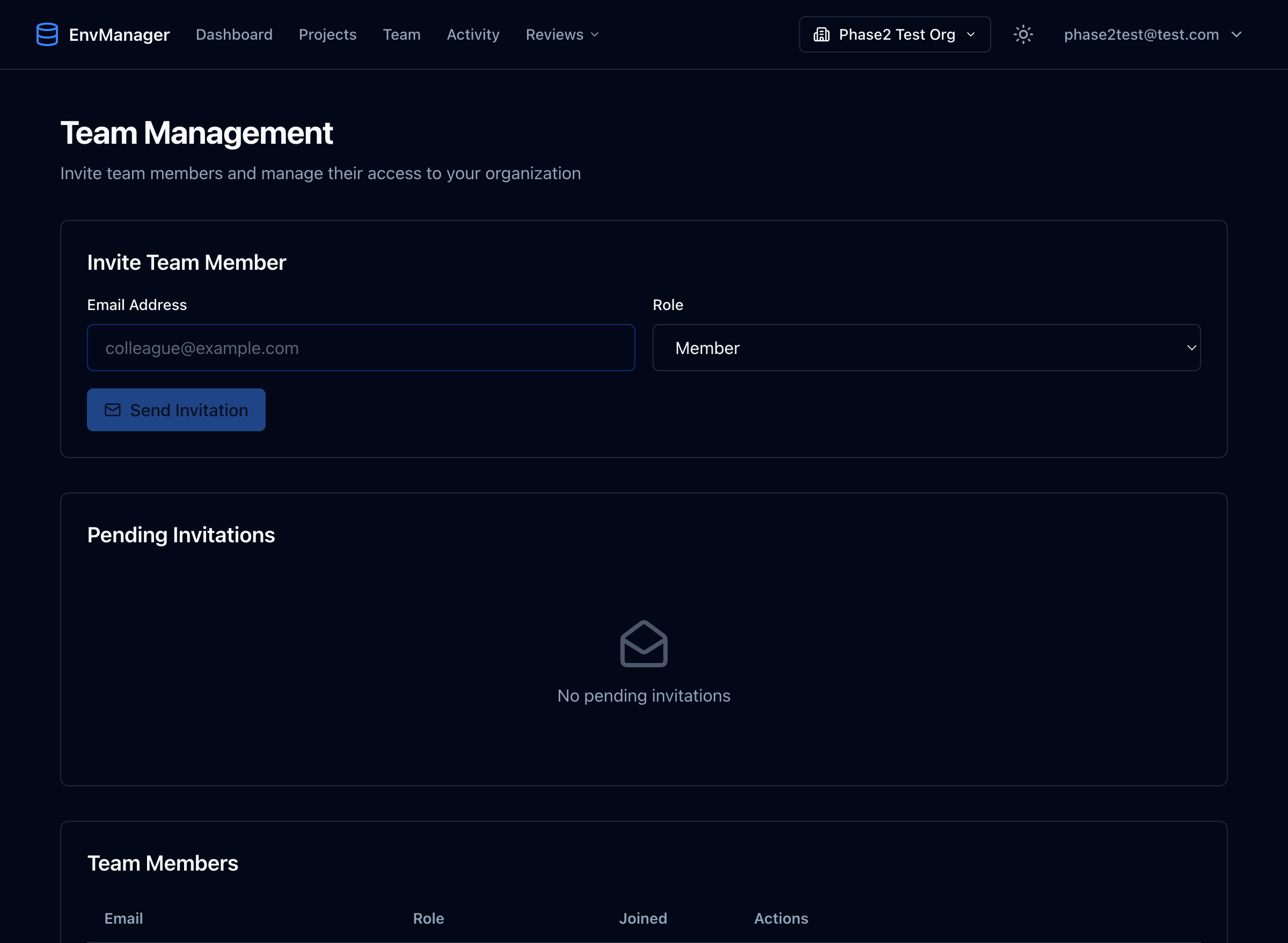
Use the Team Management page to invite members and manage roles.
- Click "Team" in the navigation bar
- Enter a team member's email address
- Select a role (Member, Admin, or Viewer)
- Click "Send Invitation"
Next Steps
Now that you have the basics set up, learn more about:
- Your First Variables - Detailed first-run guide
- Managing Variables - Create and organize variables
- Team Members - Invite colleagues and manage access