Environment Snapshots
While version history tracks changes to individual variables, snapshots capture the entire state of an environment at a point in time. This is useful before deployments, migrations, or any situation where you want a reliable checkpoint to fall back on.
Why Use Snapshots?
Snapshots are useful when you:
- Prepare for deployments — Save the current state before rolling out new configuration
- Test configuration changes — Take a snapshot, experiment freely, and restore if things break
- Compare environments over time — See exactly what changed between two points in time
- Recover from mistakes — Restore an entire environment to a known-good state with one action
Before You Begin
Snapshots are per-environment. A snapshot of your Development environment captures only Development variables, not Staging or Production.
To use snapshots, you need:
- An EnvManager account with access to a project
- At least one environment with variables
See Variables Overview if you haven't created any variables yet.
Creating a Snapshot
Open the Snapshots Panel
Navigate to your project and select the environment. Click the Snapshots button in the toolbar above the variables list.
Click Create
In the snapshots panel, click the Create button.
Name Your Snapshot
Enter a descriptive name and an optional description. Good names describe the purpose or context:
- "Pre-deployment v2.0"
- "Before database migration"
- "Working config - March 2026"
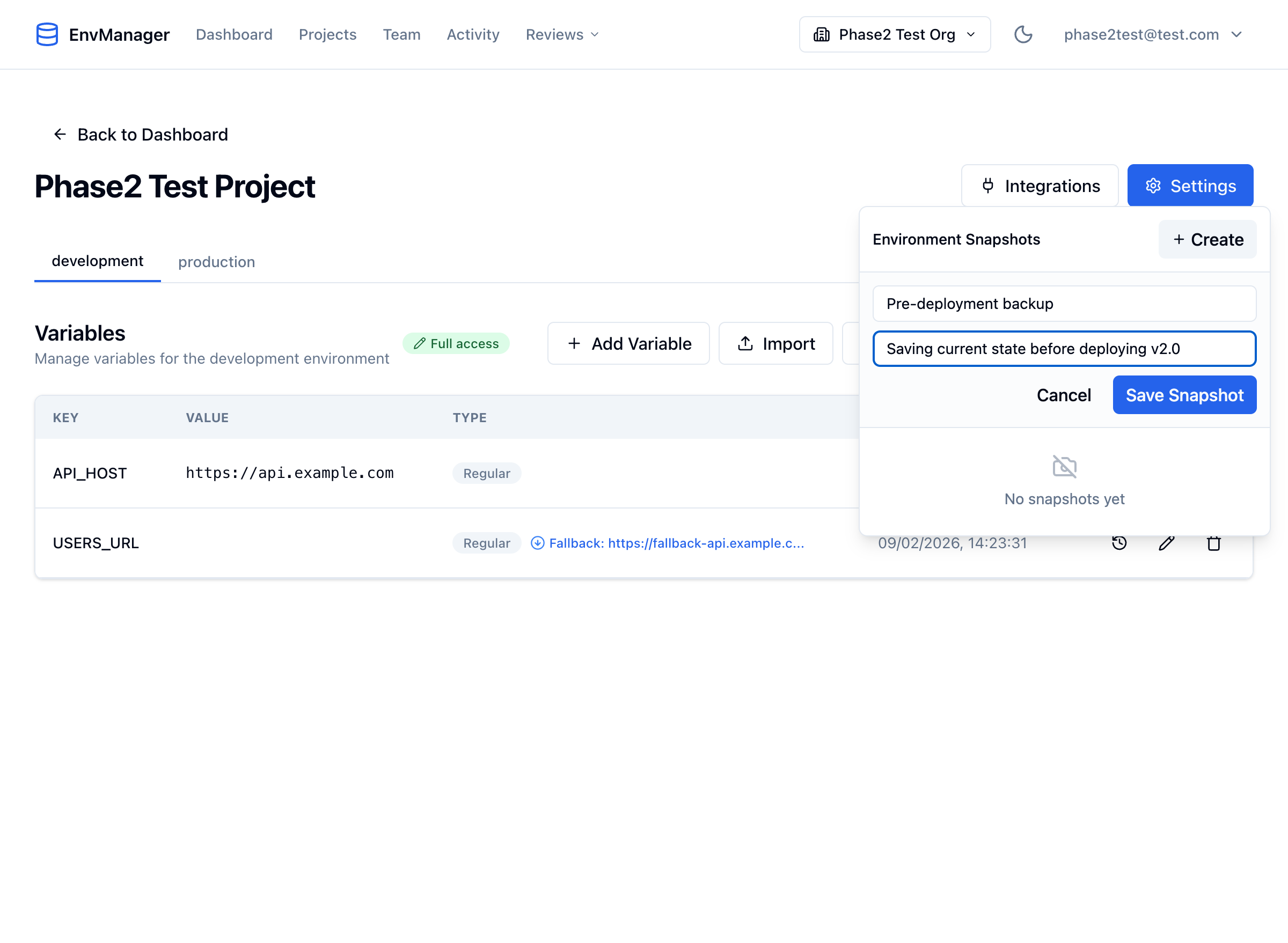
Give your snapshot a clear name so you can find it later.
Save the Snapshot
Click Save Snapshot. The snapshot captures all current variable keys and values in this environment.
Viewing Snapshots
After creating a snapshot, it appears in the snapshots panel with:
- Name — The name you gave it
- Variable count — How many variables were captured
- Timestamp — When the snapshot was taken
- Description — Your optional description
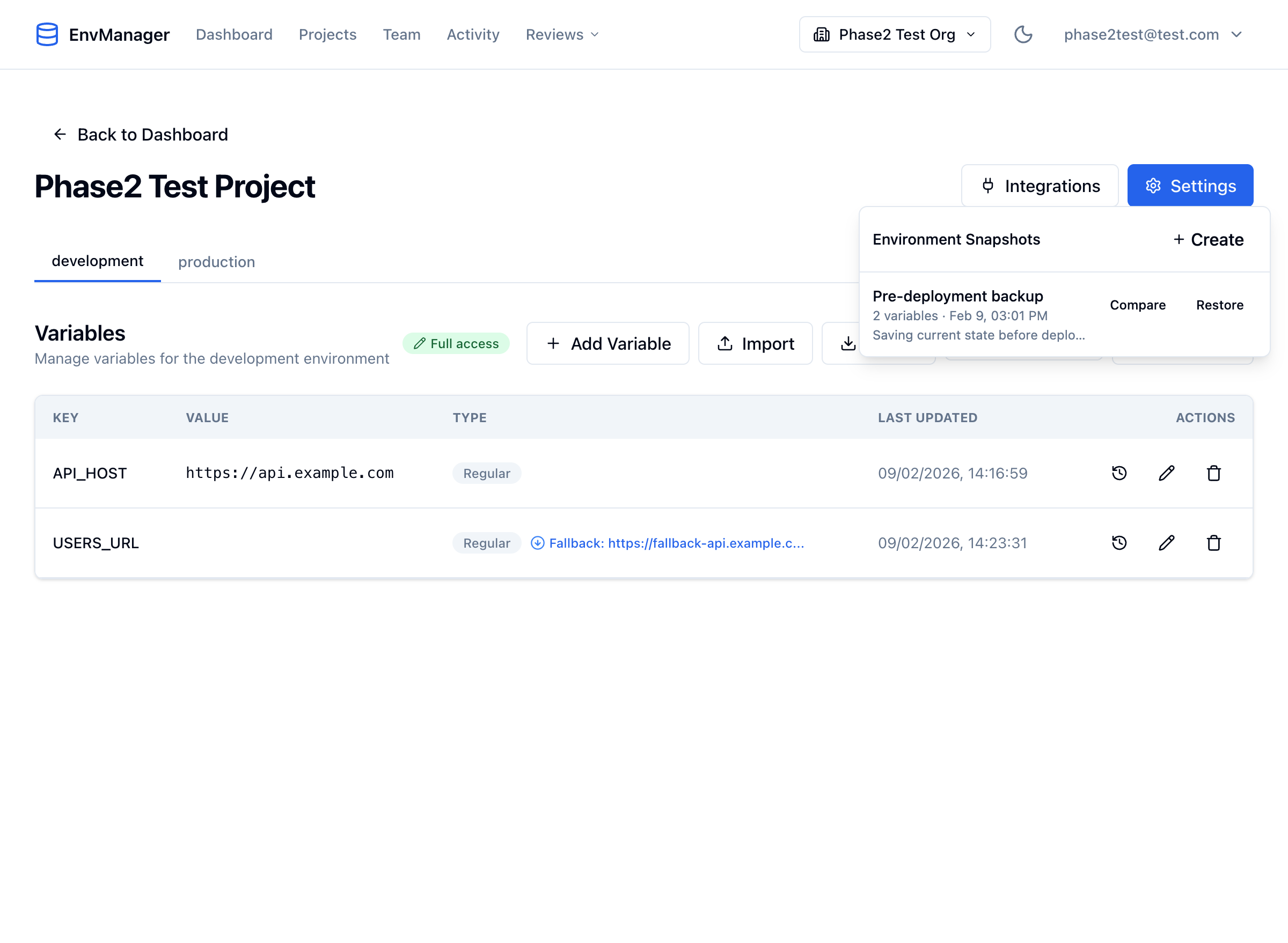
Saved snapshots show key details and actions at a glance.
The toolbar button also shows the snapshot count (e.g., "Snapshots (1)") so you can see at a glance whether any snapshots exist.
Comparing a Snapshot
The compare feature shows you exactly what changed between the snapshot and the current state of the environment.
Open the Snapshots Panel
Click Snapshots in the toolbar.
Click Compare
Next to the snapshot you want to compare, click Compare. A comparison dialog opens.
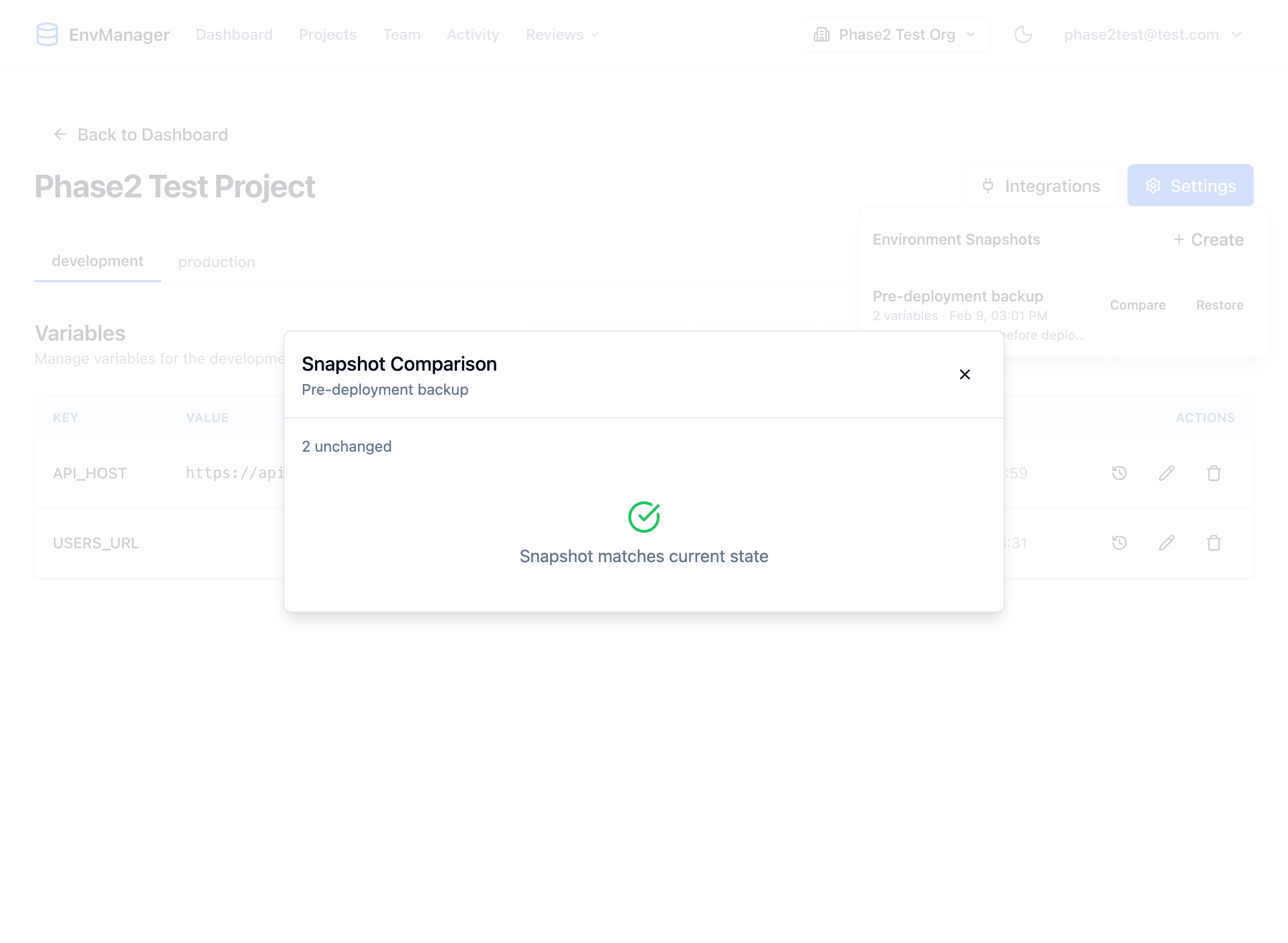
The comparison view highlights differences between the snapshot and the current environment.
Review the Differences
The comparison groups variables into categories:
| Category | Color | Meaning |
|---|---|---|
| Added | Green | Variables that exist now but were not in the snapshot |
| Removed | Red | Variables that were in the snapshot but no longer exist |
| Modified | Yellow | Variables whose values have changed since the snapshot |
| Unchanged | Gray | Variables that haven't changed |
If the snapshot matches the current state exactly, you'll see a green checkmark with "Snapshot matches current state."
Restoring a Snapshot
Restoring a snapshot reverts all variables in the environment to match the snapshot. Variables that were added after the snapshot are removed, deleted variables are re-created, and modified values are reverted.
Open the Snapshots Panel
Click Snapshots in the toolbar.
Click Restore
Next to the snapshot you want to restore, click Restore.
Confirm the Restoration
Review the changes that will be made and confirm. The restoration updates all variables to match the snapshot state.
For protected environments (where approval is required), restoring a snapshot creates pending changes that must be approved before taking effect. The environment won't change until all pending changes are approved.
Tips
Create a snapshot before every deployment. It takes seconds and gives you an instant rollback path if the new configuration causes issues.
- Name snapshots descriptively — "Pre-deploy v2.0" is much more useful than "Snapshot 1" when you need to find it weeks later
- Compare before restoring — Always compare first to understand what will change
- Snapshots capture values, not secrets — Secret values are included in the snapshot but remain encrypted
- Old snapshots remain valid — Snapshots don't expire, so you can restore from one taken months ago
Next Steps
Version History
Track individual variable changes and roll back single values.
Variables Overview
Learn the basics of creating and managing variables.
Environments
Manage variables across different environments.