API Keys
An API key is a headless login for the EnvManager CLI. It lets a machine sign in as you without opening a browser, which is exactly what you need for CI jobs, build steps, and servers.
A key does not have its own permissions. It carries your access and never more: the same organizations, the same projects, the same environments you can reach when you sign in yourself. If you cannot see a variable, neither can your key.
Keys only work through the CLI. There is no separate API to call with them.
Use an API key when:
- A GitHub Actions, GitLab CI, or other pipeline needs to pull variables during a build
- A server or container starts up and needs its configuration
- A script runs on a schedule with nobody there to log in
For everyday work on your own laptop you do not need a key. Run envmanager login instead and sign in through your browser.
Before You Begin
- You need an EnvManager account and membership of at least one organization. API keys are available to every member on every plan, and there is no limit on how many you can have.
- Install the CLI if you have not already. See CLI Overview.
- Have somewhere safe to store the key, such as your CI platform's secrets or a password manager. The key is shown only once.
Finding Your API Keys
Open Settings
Click Settings in the sidebar navigation from any dashboard page.
Select the API Keys Tab
Click the API Keys tab. You will see your own keys and the machines where you are signed in with the CLI.
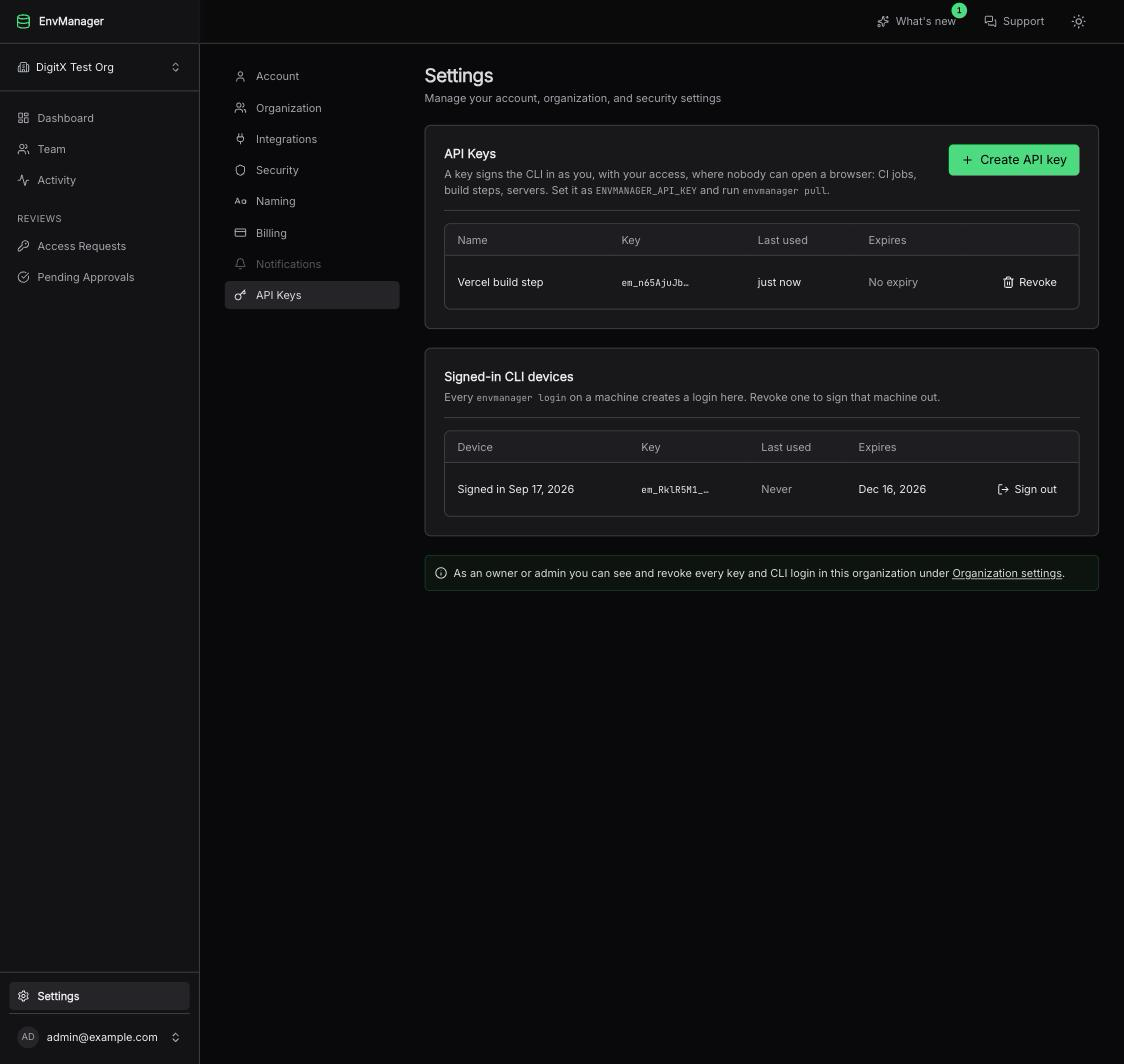
The API Keys tab lists the keys you created and, below them, the machines where you signed in with the CLI.
The API Keys card lists every key you created:
| Column | What it shows |
|---|---|
| Name | The name you gave the key, so you can recognise where it is used |
| Key | The first few characters of the key, such as em_pyhLgjQg…. Enough to match a key to your CI secret, never enough to use it |
| Last used | When the key was last accepted by the CLI, or nothing if it has not been used yet |
| Expires | A date, "No expiry", or an Expired badge if the date has passed |
You only ever see your own keys here. Other people's keys are not shown, and they cannot see yours.
Creating an API Key
Open the Create Dialog
On the API Keys tab, click Create API key.
Name the Key
Type a name that says where the key will be used, for example "GitHub Actions – production deploy". The name is the only thing you will have to recognise the key by later, so be specific. One key per pipeline is easier to manage than one key for everything.
Choose the Organization
If you belong to more than one organization, pick the one this key is for. The dialog defaults to the organization you are working in right now. If you belong to only one organization, this choice is not shown.
Choose When It Expires
Pick how long the key should keep working: 30 days, 90 days (recommended, and the default), 180 days, 1 year, or Never.
A shorter life is safer. If a key leaks without anyone noticing, an expiry date limits the damage. When a key expires it simply stops working, and you create a new one.
Create the Key
Click Create key.
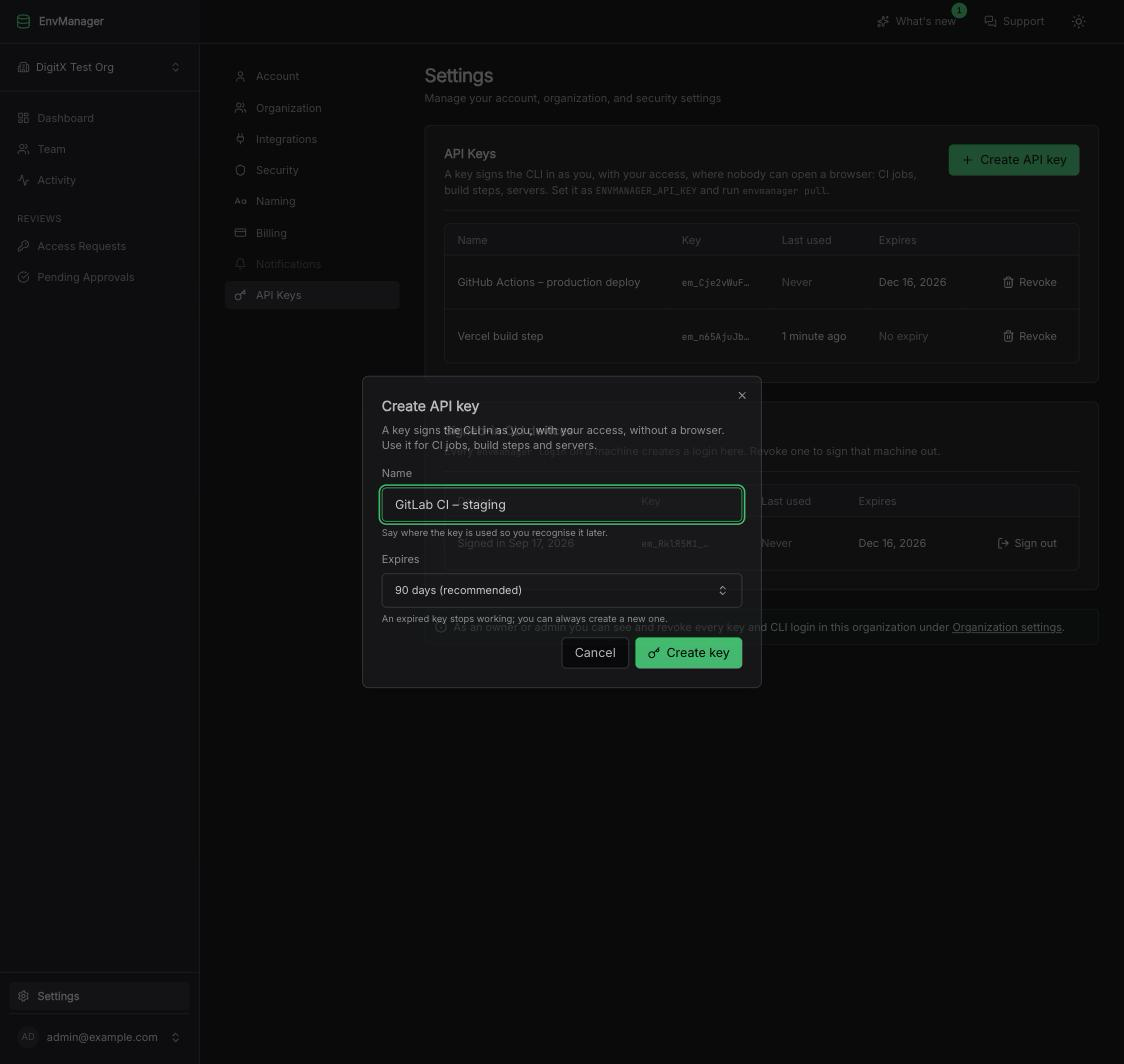
The Create API key dialog. The Organization field only appears when you belong to more than one organization.
Saving the Key
Once the key is created, a dialog shows the full key.
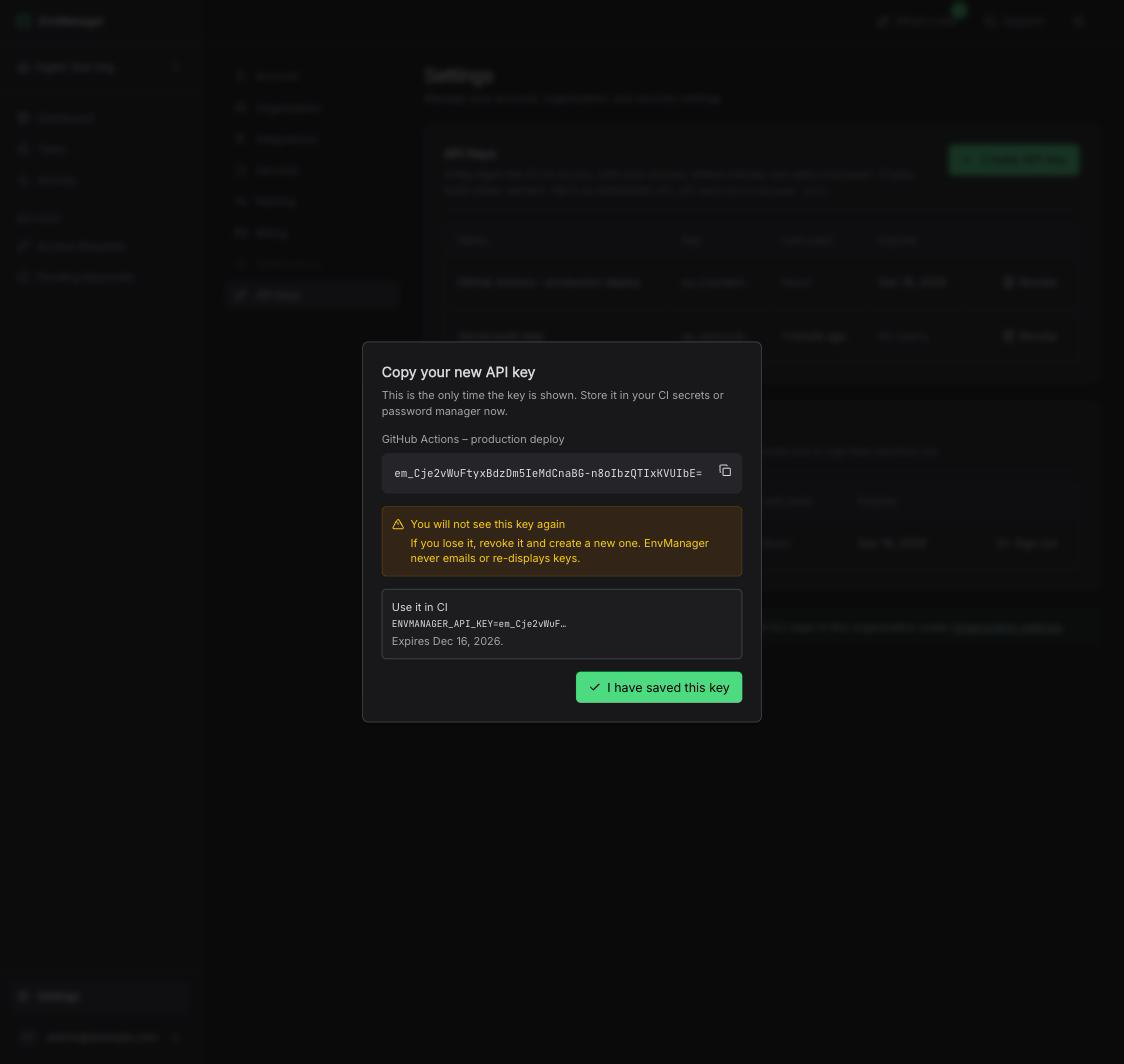
This is the only time the full key is shown. Copy it before you close the dialog.
Copy the Key
Click the copy button next to the key, or select the text and copy it yourself.
Store It Somewhere Safe
Paste it straight into your CI platform's secrets, or into your password manager. The dialog also shows how it is used: as an environment variable named ENVMANAGER_API_KEY.
Confirm
Click I have saved this key to close the dialog.
You will not see this key again. There is no way to look it up later, and we never send a key by email. The dialog will not close until you click I have saved this key, so take your time. If you lose the key, revoke it and create a new one.
Using the Key
On any machine, set the key as an environment variable and run the CLI as usual:
export ENVMANAGER_API_KEY=em_your_api_key_here
envmanager pull
In a pipeline, never paste the key into a file you commit. Store it as a secret in your CI platform and hand it to the job as an environment variable:
GitHub Actions:
env:
  ENVMANAGER_API_KEY: ${{ secrets.ENVMANAGER_API_KEY }}
GitLab CI: add ENVMANAGER_API_KEY as a masked CI/CD variable in your project settings.
See CLI Authentication for the full setup and more examples.
Revoking a Key
Revoke a key when the pipeline that used it is gone, when someone who should not have it may have seen it, or when you have replaced it with a new one.
Find the Key
Go to Settings > API Keys and find the key in the API Keys table.
Click the Trash Icon
Click the trash icon at the end of the row. A confirmation dialog titled "Revoke API key?" appears.
Confirm
Click Revoke key.
Revoking takes effect immediately. Any build, server, or script still using that key stops working right away, so make sure you have replaced it first if the pipeline is still running.
There is no "regenerate" button. To rotate a key, create a new one, put it in your CI secrets, check that the next run succeeds, and then revoke the old key.
Signed-in CLI Devices
Every time you run envmanager login on a machine, that machine gets its own sign-in. Those sign-ins appear in the Signed-in CLI devices card, separate from the keys you created by hand, so your key list stays readable.
Each row shows Signed in with the date, the first characters of the sign-in, when it was last used, and when it expires (90 days after you signed in).
To log a machine out, click Sign out on its row and confirm in the "Sign out this device?" dialog. That machine will need to run envmanager login again.
At the moment, running envmanager login again replaces your previous CLI sign-in. If you log in on a second machine, the first one is signed out.
For Owners and Admins
If you are an owner or admin, you also get a view of every key in your organization. On the API Keys tab you will see an info box linking to Organization settings.
Go to Settings > Organization and find the API Keys & CLI Logins card.
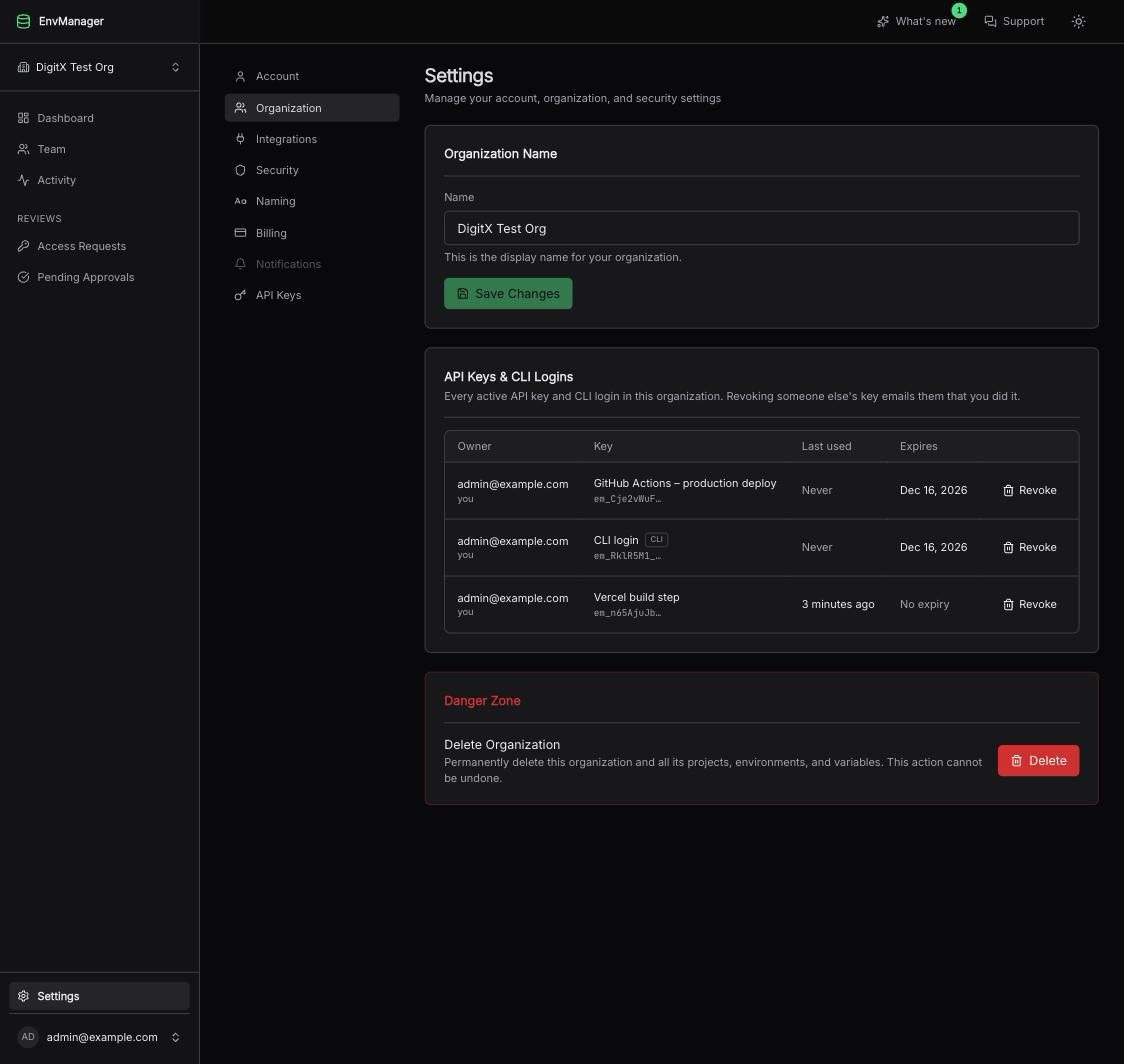
Owners and admins see every active key and CLI login in the organization, with a Revoke button on each row.
The card lists every active key and CLI sign-in in the organization:
| Column | What it shows |
|---|---|
| Owner | The email address of the person the key belongs to, with a marker next to your own |
| Key | The key's name, or "CLI login" with a CLI badge for a browser sign-in |
| Last used | When the key was last used |
| Expires | The expiry date, or "No expiry" |
Click Revoke on any row and confirm to switch that key off immediately.
When you revoke a key that belongs to someone else, that person receives an email telling them which admin revoked which key. Nobody is left wondering why their build suddenly broke.
Members do not see this card and cannot revoke anyone else's keys. They manage only their own, on the API Keys tab.
Use this view to check that keys are not piling up, that old pipelines are not still holding a key, and that people who left have no keys standing.
Security Notes
A key is as powerful as you are. It inherits your access and never more. If you are an owner, a key you create can reach everything an owner can. Keep that in mind before you paste one into a pipeline that other people can edit.
A key is shown once. We never email a key, and we cannot show it again. If you lose it, revoke it and create a new one.
You are told when a key is created. Every time a key is created on your account you receive an email: "New API key on your EnvManager account", with the key's name. If it was not you, revoke that key straight away and change your password. CLI sign-ins do not send an email.
Everything is recorded. Creating and revoking a key is written to your account's security history, alongside sign-ins and password changes.
Leaving an organization removes access. When someone is removed from an organization, their keys for it stop working.
Keys only work through the CLI. A key cannot be used to sign in to the dashboard and there is no separate API that accepts it.
Tips & Best Practices
- One key per pipeline — Name it after the job that uses it. When that job goes away, you know exactly which key to revoke.
- Keep the default 90 days — Rotating a few times a year is a small chore that keeps a forgotten key from living forever.
- Only pick "Never" deliberately — For a long-running server where rotation is genuinely painful, and write down where the key lives.
- Never commit a key — Always use your CI platform's secrets. A key in a repository is a key that has leaked.
- Rotate before you revoke — Create the new key, update the secret, confirm a successful run, then revoke the old one.
- Check the list now and then — A key with a "Last used" from months ago is usually a key nobody needs.
Related Topics
CLI Authentication
Sign the CLI in locally and in CI/CD.
Account Settings
Manage your profile, password, and security.
Roles & Permissions
Understand what your access, and your key's access, covers.