Account Settings
Your account settings let you view your profile information and manage your security settings like changing your password.
Accessing Account Settings
Open Settings
Click Settings in the sidebar navigation from any dashboard page.
Select Profile Tab
The Profile tab is selected by default, showing your personal account settings.
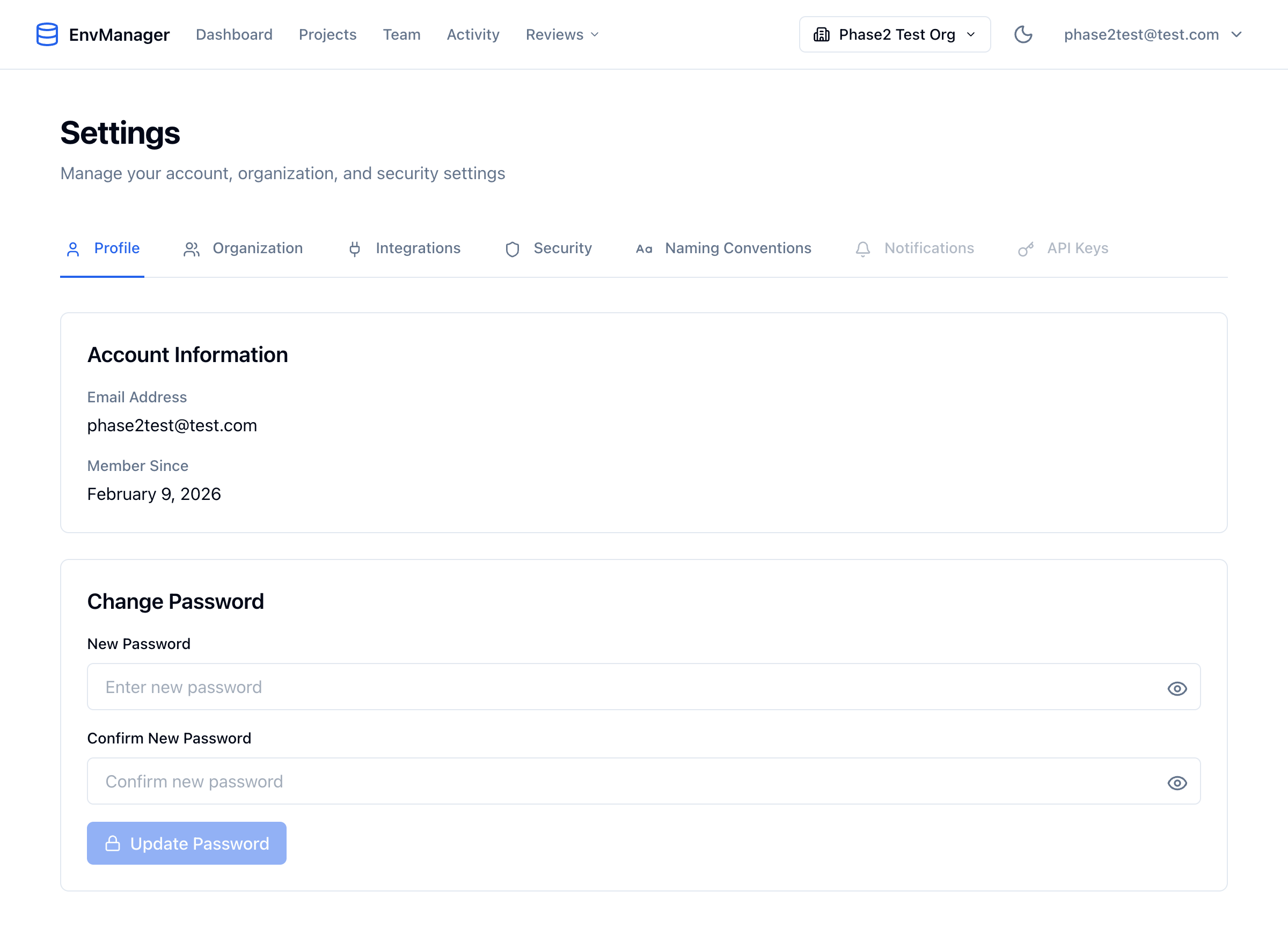
The Settings page with the Profile tab selected, showing your account information and password change form.
Viewing Account Information
The Profile tab displays your basic account information:
| Field | Description |
|---|---|
| Email Address | The email you use to sign in |
| Member Since | The date you created your account |
Your email address is used for signing in and receiving notifications. Contact support if you need to change your email address.
Changing Your Password
You can update your password at any time from the Settings page.
Navigate to Profile Settings
Go to Settings and ensure the Profile tab is selected.
Find Change Password Section
Scroll down to the "Change Password" section.
Enter New Password
Type your new password in the "New Password" field.
Confirm Password
Re-enter the same password in the "Confirm New Password" field.
Update
Click Update Password to save your new password.
Your password is updated immediately. Use your new password the next time you sign in.
Password Requirements
Your password must:
- Be at least 6 characters long
- Match in both password fields
Use a password manager to generate and store a strong, unique password for your EnvManager account.
Organization Settings
The Organization tab in Settings lets you manage your team:
- Invite new team members
- View and manage existing members
- Change member roles
- Configure environment access
See Team Members for detailed instructions.
Security Settings
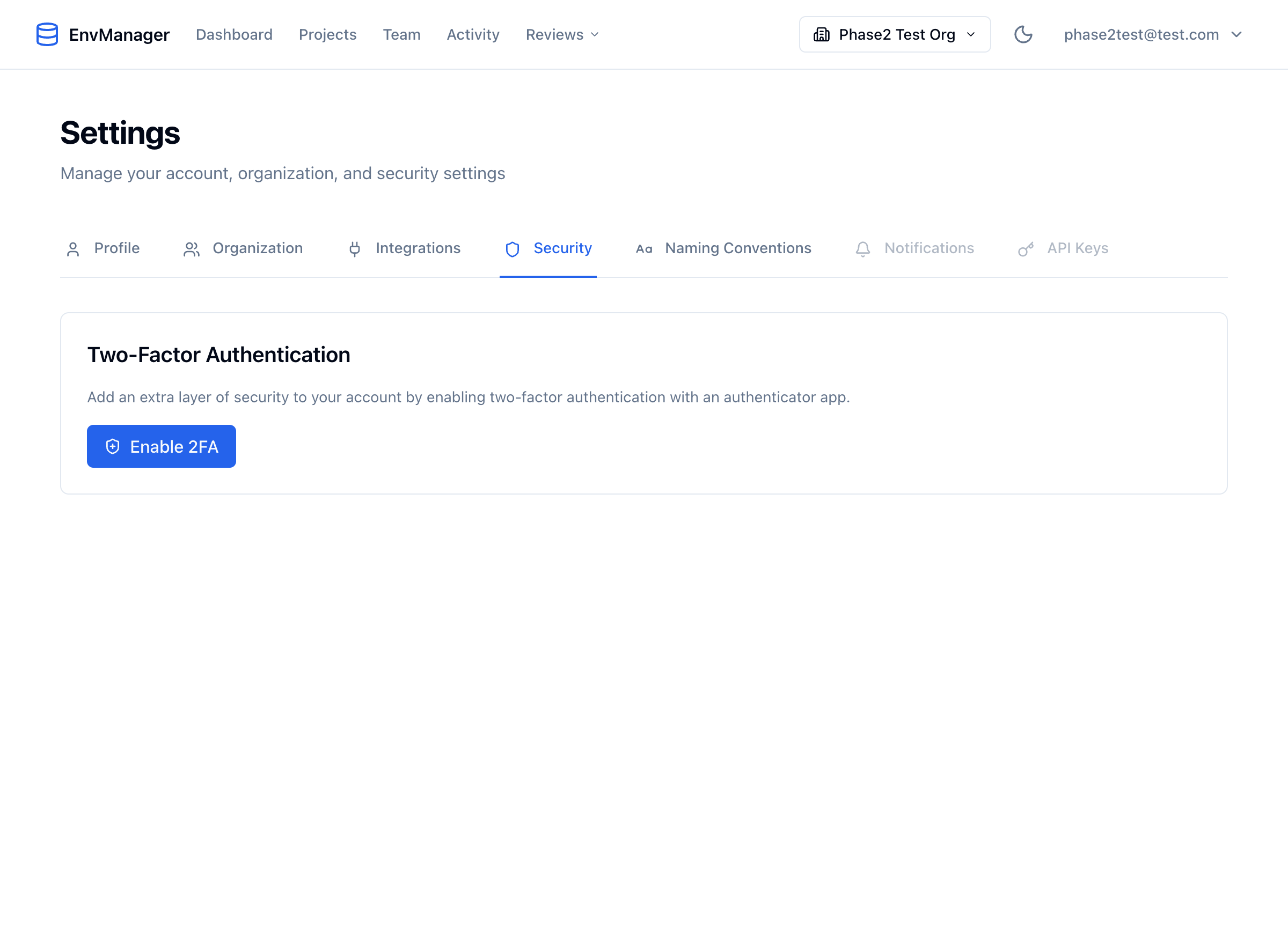
The Security tab where you can enable or manage two-factor authentication.
The Security tab lets you manage two-factor authentication for your account. See Two-Factor Authentication for detailed instructions.
API Keys
The API Keys tab is where you create keys for CI pipelines and servers, and where you can see and sign out every machine you have logged in on with the CLI. See API Keys for detailed instructions.
Staying Signed In
You stay signed in between visits. There is no time limit: whether you open EnvManager every day or once a month, you will not be asked to sign in again until you sign out yourself or change your password. When that happens you will need your password (and your two-factor code, if you have it turned on) next time.
Sign out yourself whenever you are on a shared or public computer. That ends the session straight away.
Links in Our Emails
When you click a link in an email from us and you are not signed in, we take you to the sign-in page and then send you on to the page the email was about. You do not have to find it yourself.
If you are already signed in, the link opens that page directly.
Coming Soon
The following features are in development:
Profile
- Profile avatar
- Display name
- Email address changes
Notifications
- Email notification preferences
- In-app notification settings
API Access
- Webhook configuration
Security Best Practices
Protect Your Account
- Use a strong, unique password
- Don't share your login credentials
- Sign out when using shared computers
- Enable 2FA when available
Monitor Access
- Review your organization memberships periodically
- Check which environments you have access to
- Report suspicious activity to your organization admin
Handle Credentials Carefully
- Never share secret values through insecure channels
- Use EnvManager's sharing features instead of copying secrets
- Report if you suspect credentials have been compromised
Getting Help
- Forgot password? Use the "Forgot Password" link on the sign-in page
- Can't access your account? Contact your organization admin or support
- Need to change email? Contact support
Next Steps
Team Members
Manage your organization's team.
Roles & Permissions
Understand access control in your organization.
Working with Secrets
Learn about secure variable handling.