Creating Proxy Functions
There are three ways to create a proxy function in EnvManager:
- From a template -- use a pre-configured setup for popular APIs
- Custom -- configure everything from scratch
- From a variable -- start directly from a secret variable row
All three methods open the same creation wizard, but with different starting points.
Creating from a Template
Templates provide pre-configured settings for popular APIs like Stripe, Brevo, and OpenAI. They pre-fill the target URL, HTTP method, headers, and secret mapping hints so you only need to select which secret variable to inject.
Navigate to Proxy Functions
Open your project and click Proxy Functions in the sidebar (or navigate to the proxies page).
Select an Environment
Use the environment tabs at the top to choose which environment this proxy belongs to (Development, Staging, or Production).
Click Create Proxy
Click the Create Proxy button in the top-right corner. The creation wizard opens, showing available templates.
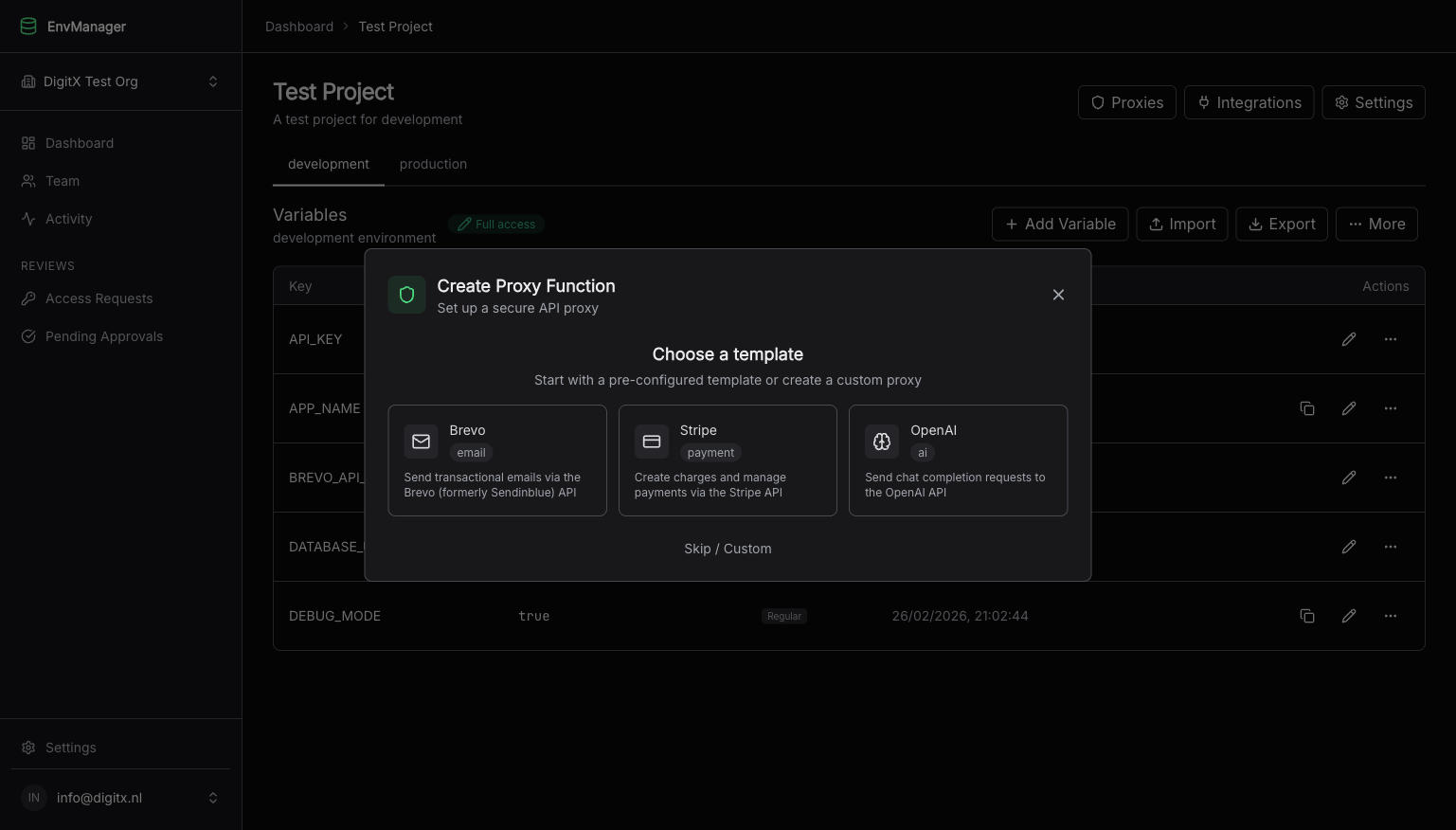
Choose a pre-configured template or click Skip / Custom to start from scratch.
Choose a Template
Browse the available templates and click one to select it. The wizard pre-fills the proxy name, target URL, HTTP method, headers, and secret mapping structure based on the template.
Select Your Secret Variable
In the Secret Mapping section, each mapping row has a variable dropdown. Select the secret variable from your environment that corresponds to the API key or credential the template expects.
Review and Save
Review the pre-filled configuration. Adjust any fields as needed (description, allowed origins, etc.) and click Create Proxy to save.
You can skip the template step at any time by clicking Skip to go directly to the blank form.
Creating a Custom Proxy Function
If no template matches your use case, create a proxy from scratch.
Open the Creation Wizard
Navigate to your project's proxy functions page, select an environment, and click Create Proxy.
Skip Templates
Click Skip on the template selection step to open the blank form.
Fill in Basic Info
| Field | Description | Required |
|---|---|---|
| Name | A descriptive name for the proxy (e.g., "Brevo Email Sender") | Yes |
| Slug | Auto-generated from the name, used in URLs | Auto |
| Description | What this proxy does | No |
| Service | Optionally scope the proxy to a service within the project | No |
Configure the Target API
| Field | Description | Required |
|---|---|---|
| Target URL | The full URL of the third-party API endpoint | Yes |
| HTTP Method | GET, POST, PUT, or DELETE | Yes (defaults to POST) |
| Static Headers | Headers to send with every request (e.g., Content-Type: application/json) | No |
Add Secret Mappings
See Configuring Secret Mappings for detailed instructions.
Set Allowed Origins
See Setting Up CORS for detailed instructions.
Configure the Request Body
Choose how the request body is handled:
- Pass through client body (default) -- forwards the request body from the caller as-is
- Body template -- define a fixed JSON body structure. Useful when the third-party API expects a specific format
Save
Click Create Proxy to save. The proxy is immediately active and ready to receive requests.
Creating from a Variable
You can start the proxy creation wizard directly from a secret variable row on the variables page. This is useful when you already know which secret you want to proxy.
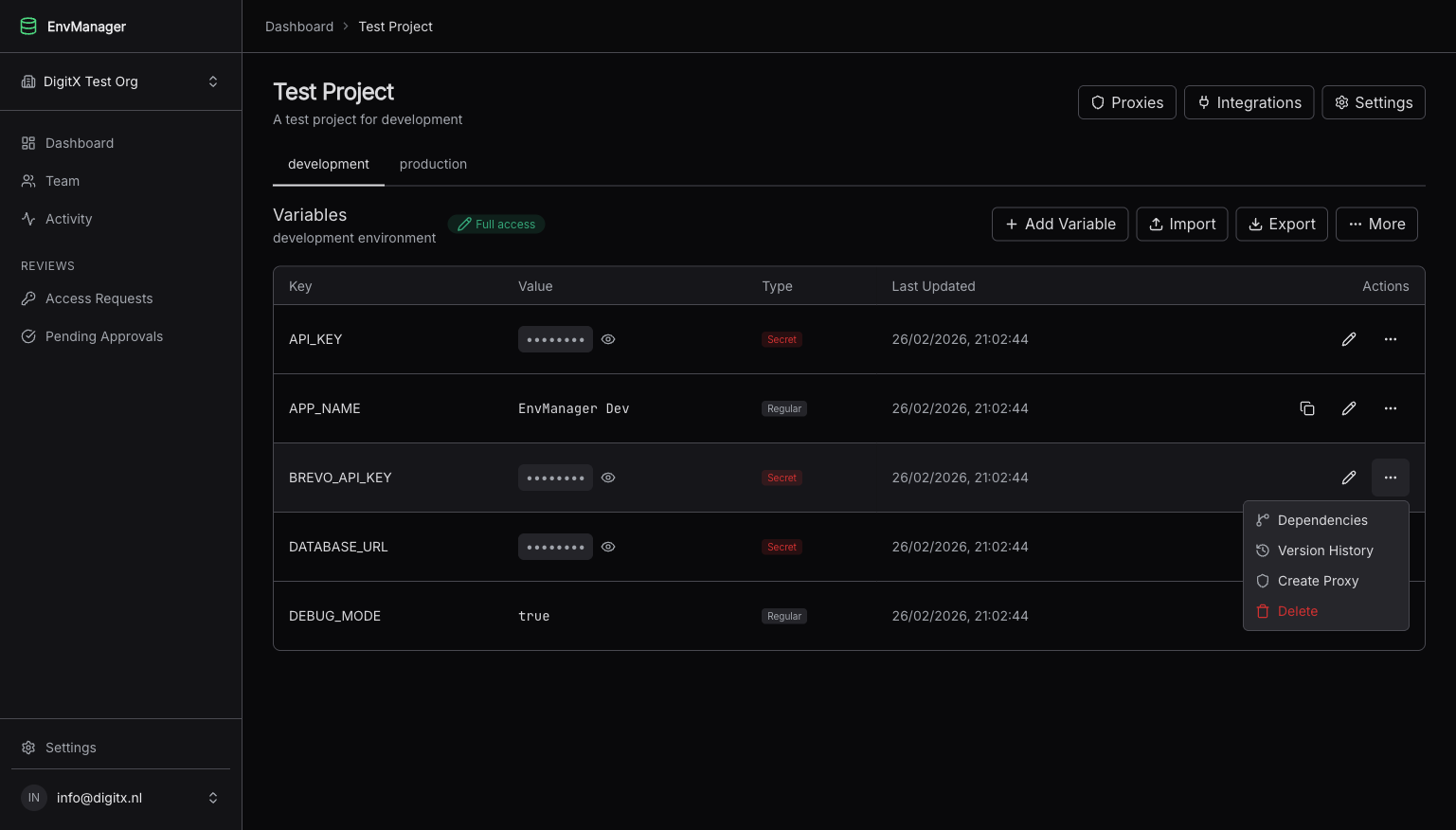
The Create Proxy action appears in the dropdown menu for secret variables.
Go to the Variables Page
Navigate to your project and select the environment containing the secret variable.
Find the Secret Variable
Locate the secret variable you want to use in a proxy.
Click Create Proxy
Click the action menu (three dots) on the variable row and select Create Proxy. The creation wizard opens with the template selector and your variable pre-selected.
Choose a Template or Skip
You can pick a template that matches your API — the template's settings are applied and your variable is automatically assigned to the first secret mapping. Or click Skip / Custom to start with a blank form where only your variable is pre-filled.
Complete the Configuration
Review and adjust the target URL, HTTP method, and any additional settings. If you selected a template, most fields are already filled in.
Save
Click Create Proxy to save.
After Creating a Proxy
Once created, your proxy function is immediately available. You receive:
- Proxy URL -- the hosted endpoint URL to call from your frontend
- Proxy Token -- the secret token required in the
x-proxy-tokenheader - curl Example -- a ready-to-use command for testing
Copy the proxy URL and token, and use them in your frontend code. See Integrating in Your Code for step-by-step examples in JavaScript, React, Vue, and Astro. Use the built-in test panel to verify it works before deploying.