Roles & Permissions
EnvManager uses a role-based access control system with four roles: Owner, Admin, Member, and Viewer. Additionally, you can configure environment-level access with read or write permissions for fine-grained control.
Role Overview
| Capability | Owner | Admin | Member | Viewer |
|---|---|---|---|---|
| View projects | Yes | Yes | Assigned only | Assigned only |
| View variables (read-only) | Yes | Yes | Assigned environments | Assigned environments |
| Manage variables (CRUD) | Yes | Yes | Write access only | No |
| View pending changes (read-only) | Yes | Yes | Yes | No |
| Approve/reject pending changes | Yes | Yes | No | No |
| Project settings (approval mode, etc.) | Yes | Yes | No | No |
| Create/edit/delete projects | Yes | Yes | No | No |
| Manage environments | Yes | Yes | No | No |
| View/reveal secrets | Yes | Yes | Write access only | No |
| Invite team members | Yes | Yes | No | No |
| Manage team members | All | Members only | No | No |
| Change member roles | All roles | Member only | No | No |
| Manage integrations | Yes | Yes | No | No |
| View audit logs | Yes | Yes | No | No |
| Manage billing | Yes | No | No | No |
| Delete organization | Yes | No | No | No |
Owner Role
The organization creator is automatically the Owner. Owners have complete control over the organization.
Owner Capabilities
- Full access to all projects, environments, and variables
- Billing management including subscription changes
- Organization deletion (irreversible)
- Promote any member to Admin or Owner
- Remove any member except the last Owner
Owner Responsibilities
As an Owner, you should:
- Set up the organization structure
- Manage billing and subscription
- Oversee security and access policies
- Be the final escalation point for access decisions
Every organization must have at least one Owner. You cannot remove or demote the last Owner.
Admin Role
Admins are trusted team members who help manage the organization day-to-day.
Admin Capabilities
- Project management — Create, edit, and delete projects
- Environment management — Create, rename, clone, and delete environments
- Variable access — View and edit all variables including secrets
- Team management — Invite members, change Member roles, remove Members
- Audit access — View the audit log for compliance
Admin Limitations
- Cannot access billing or subscription settings
- Cannot delete the organization
- Cannot change Admin or Owner roles
- Cannot remove Owners
When to Use Admin Role
Assign Admin to:
- Team leads who manage projects
- DevOps engineers who need full environment access
- Senior developers who onboard new team members
Member Role
Members are the default role for most team members.
Member Capabilities
- View assigned projects — See projects they have access to
- Variable access — View and edit variables in assigned environments
- Secret access — Reveal secrets in assigned environments
Member Limitations
- Cannot create, edit, or delete projects
- Cannot manage environments
- Cannot invite or manage team members
- Cannot access billing or audit logs
- Can only access environments explicitly granted
When to Use Member Role
Assign Member to:
- Developers who need access to specific environments
- Contractors with limited project scope
- Team members who don't need administrative functions
Viewer Role
Viewers have the most restricted access. They can see assigned environments and variables but cannot modify anything.
Viewer Capabilities
- View assigned projects — See projects they have environment access to
- View variables — See variable keys in assigned environments
- View values — Only when the environment has "Show Values to Readers" enabled (otherwise values are masked)
Viewer Limitations
- Cannot create, edit, or delete projects
- Cannot create or manage environments
- Cannot create, edit, or delete variables — even if granted write-level environment access
- Cannot reveal secrets
- Cannot invite or manage team members
- Cannot access billing or audit logs
When to Use Viewer Role
Assign Viewer to:
- Auditors who need visibility without any write access
- Stakeholders who need to verify configuration
- Junior team members during onboarding
- External consultants with read-only requirements
The Viewer role is enforced at the database level. Even if a Viewer is accidentally granted write-level environment access, they still cannot modify anything. The Viewer role always overrides access levels.
Environment-Level Access
For Members and Viewers, you can control exactly which environments they can access and whether they have read or write permissions. This allows scenarios like:
- Junior developers have read-only access to Production but write access to Development
- Senior engineers have write access to all environments
- Auditors have read-only access across all environments
- Contractors have write access to only specific project environments
Access Levels
Each environment grant has an access level:
| Access Level | Can View Variables | Can Edit Variables | Can Reveal Secrets | Can See Values |
|---|---|---|---|---|
| Write | Yes | Yes (Members only, not Viewers) | Yes | Always |
| Read | Yes | No | No | Only if "Show Values to Readers" is enabled |
Show Values to Readers
Each environment has a "Show Values to Readers" setting that controls what read-only users see:
- Disabled (default): Read-only users see variable keys but values appear as
******** - Enabled: Read-only users see the actual variable values
This is useful when you want auditors or stakeholders to verify configuration values without granting them edit access.
Users with write access always see values regardless of this setting. This setting only affects users with read-level access.
Setting Environment Access
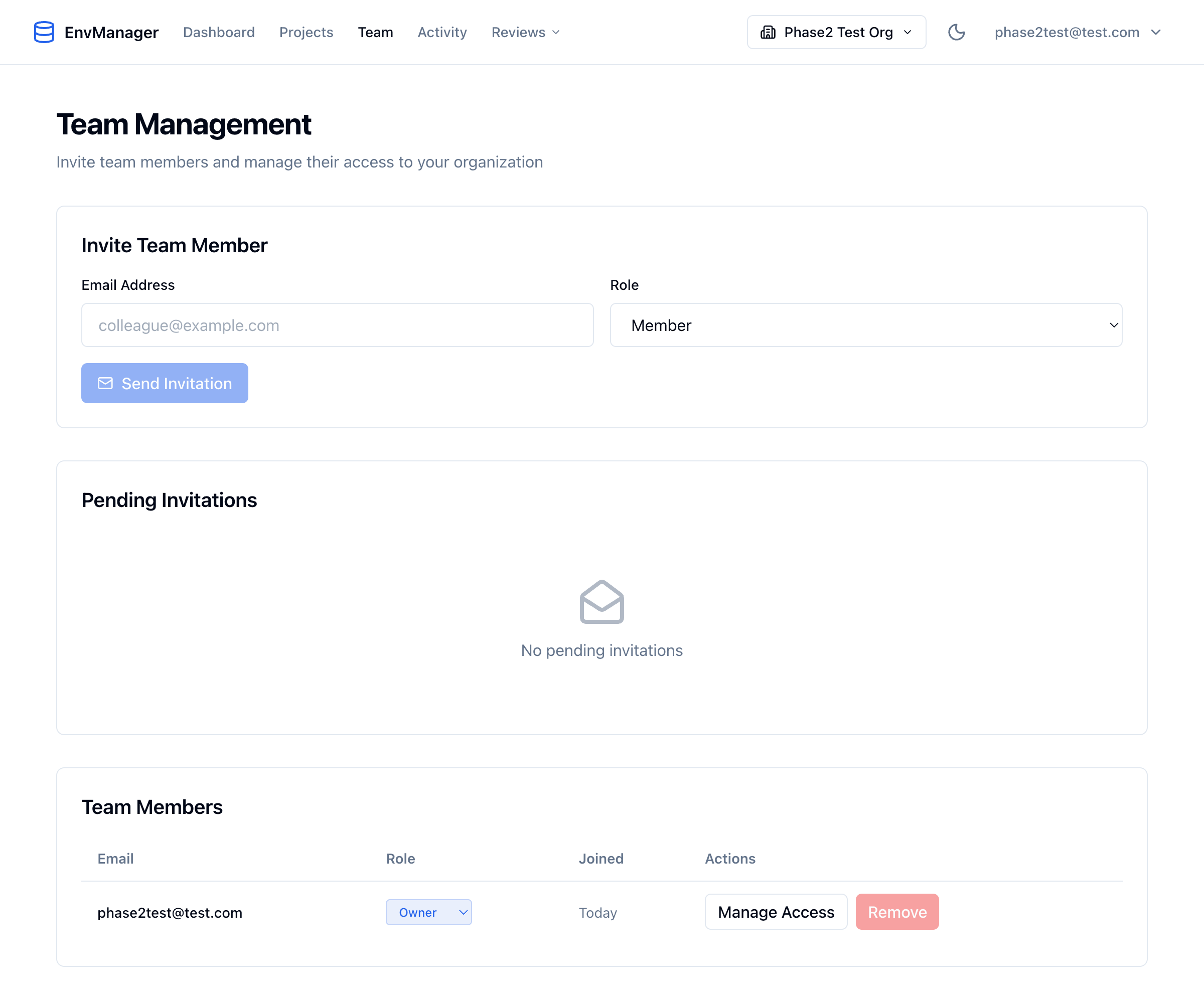
Use the Manage Access button in the Team Members table to configure environment-level access for each member.
Go to Team Management
Navigate to Team in the sidebar.
Find the Member
Locate the member in the Team Members table.
Click Manage Access
Click Manage Access to open the environment access modal.
Select Environments and Access Level
Check the environments this member should access. For each selected environment, choose an access level from the dropdown:
- Read-only — The member can view variables but not modify them
- Read & Write — The member can view and edit variables
New environment selections default to Read-only for safety.
Save
Click Save Changes to apply the access settings.
Configuring Value Visibility
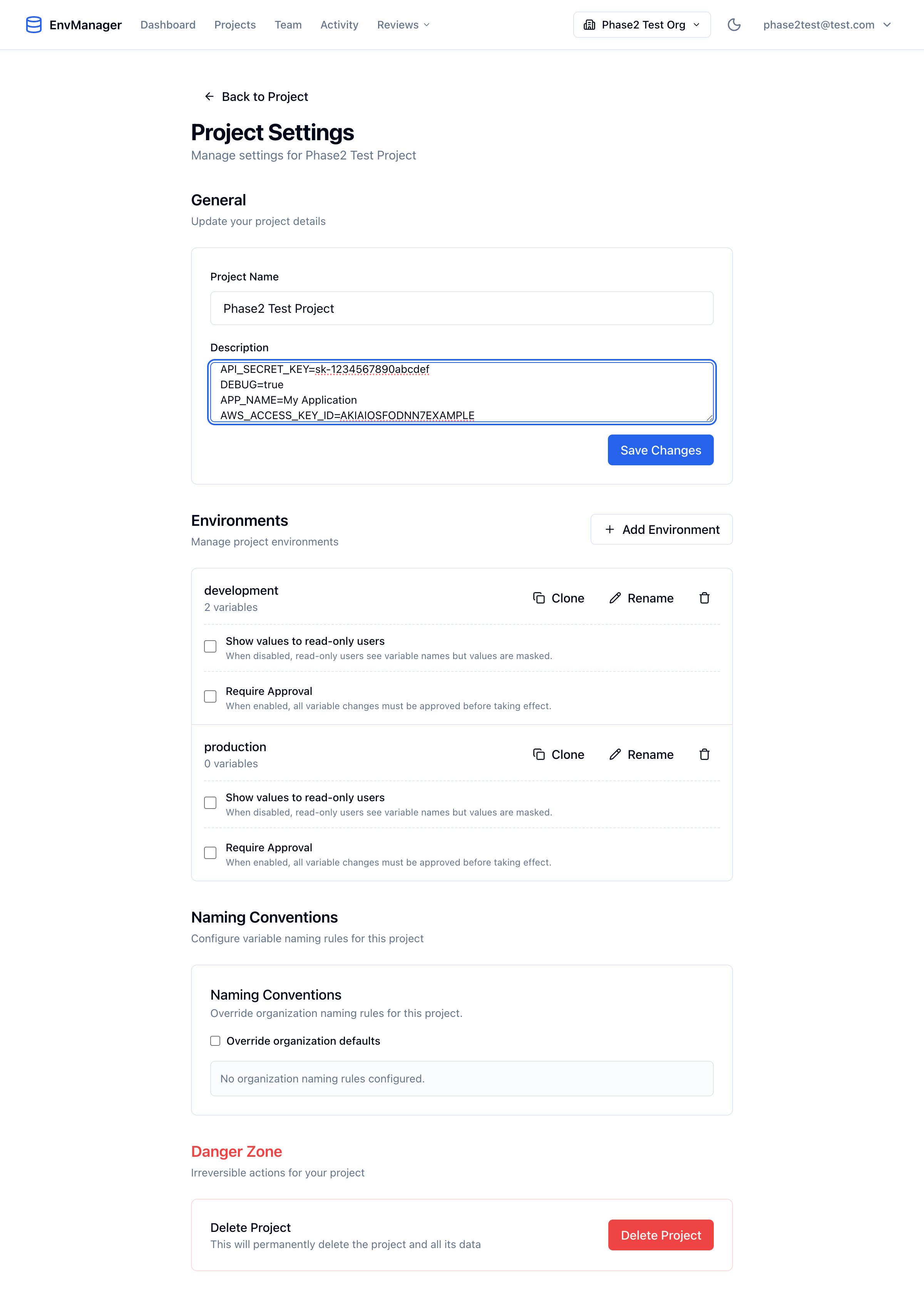
Each environment in Project Settings has a "Show values to read-only users" toggle and a "Require Approval" toggle.
Go to Project Settings
Open a project and click Settings.
Find the Environment
Scroll to the Environments section.
Toggle "Show values to read-only users"
Each environment has a checkbox labeled Show values to read-only users. When disabled (default), read-only users see variable names but values appear as ••••••••. When enabled, they can see the actual values.
Access Scenarios
| Team Member | Role | Recommended Access |
|---|---|---|
| Junior developer | Member | Write on Development, Read on Staging |
| Senior developer | Member | Write on Development, Staging, Production |
| DevOps engineer | Admin | Full access (all environments) |
| QA tester | Member | Read on Staging |
| External contractor | Member | Write on specific project Development only |
| Auditor | Viewer | Read on all environments (with Show Values enabled) |
| Stakeholder | Viewer | Read on Production |
Owners and Admins always have full write access to all environments. Environment-level access and the Viewer role only apply to Members and Viewers.
Permission Inheritance
Permissions flow from role to environment access level:
- Role determines base capabilities — What actions you can perform (Viewer role always blocks writes)
- Environment access determines scope — Which environments you can see (Members and Viewers only)
- Access level determines permissions — Read or write within that environment
A Member with write access to Development can:
- View and edit variables in Development
- Reveal secrets in Development
- Cannot see Staging or Production at all
A Member with read access to Production can:
- View variable keys in Production
- See values only if "Show Values to Readers" is enabled
- Cannot edit, create, or delete any variables
- Cannot reveal secrets
The Principle of Least Privilege
Give team members only the access they need:
Start Restrictive
- New team members start as Members
- Grant only necessary environment access
- Promote to Admin only when required
Expand as Needed
- Add environment access when responsibilities grow
- Promote to Admin for team leads
- Document why elevated access was granted
Review Regularly
- Audit access quarterly
- Remove access that's no longer needed
- Adjust roles when responsibilities change
Audit Trail
All access-related actions are logged:
- When someone views a secret
- When roles are changed
- When environment access is modified
- When members are added or removed
Owners and Admins can review the audit log for compliance and security monitoring.
Common Questions
Can I create custom roles?
Currently, EnvManager uses four fixed roles: Owner, Admin, Member, and Viewer. Custom roles may be available in future updates.
Can Members see projects they don't have access to?
No. Members and Viewers only see projects where they have at least one environment assigned.
What happens when I remove a Member's environment access?
They immediately lose access to that environment. They cannot view or edit any variables in it.
Can I give someone read-only access?
Yes. You have two options:
- Viewer role — The user can only view, never modify anything, regardless of access level
- Member role with read access level — The user can view variables in assigned environments but cannot edit them. Combine with "Show Values to Readers" on the environment if they need to see actual values.
What's the difference between Viewer role and read access level?
The Viewer role is an organization-wide restriction — Viewers can never create or modify anything. The read access level is per-environment — a Member with read access to Production but write access to Development can edit Development variables but only view Production variables.
Are access level changes tracked?
Yes. All changes to access levels are recorded in the audit log, including who changed the level, the old value, and the new value.
Next Steps
Team Members
Learn how to invite and manage team members.
Environments
Set up environments to control access scope.
Account Settings
Manage your personal account settings.