Version History & Rollback
Every change to a variable in EnvManager is automatically recorded. The version history tracks who changed what, when, and what the previous value was. If something goes wrong, you can roll back to any previous version with a single click.
Why Version History Matters
Version history is essential for teams that manage sensitive configuration:
- Audit compliance — See a complete trail of who changed what and when
- Quick recovery — Accidentally overwrite a value? Roll back in seconds
- Team visibility — Understand what changed when debugging an issue
- Change tracking — Each change is tagged with a version number, action type, and timestamp
Before You Begin
Version history is recorded automatically for all variables. You don't need to enable it — it works out of the box.
To view version history, you need:
- An EnvManager account with access to a project
- At least one variable with change history
See Variables Overview if you haven't created any variables yet.
Viewing Version History
Find the Variable
Navigate to your project and select the environment. Locate the variable you want to inspect in the variables list.
Open the History Panel
Click the clock icon in the Actions column for that variable. A side panel opens showing the complete version history.
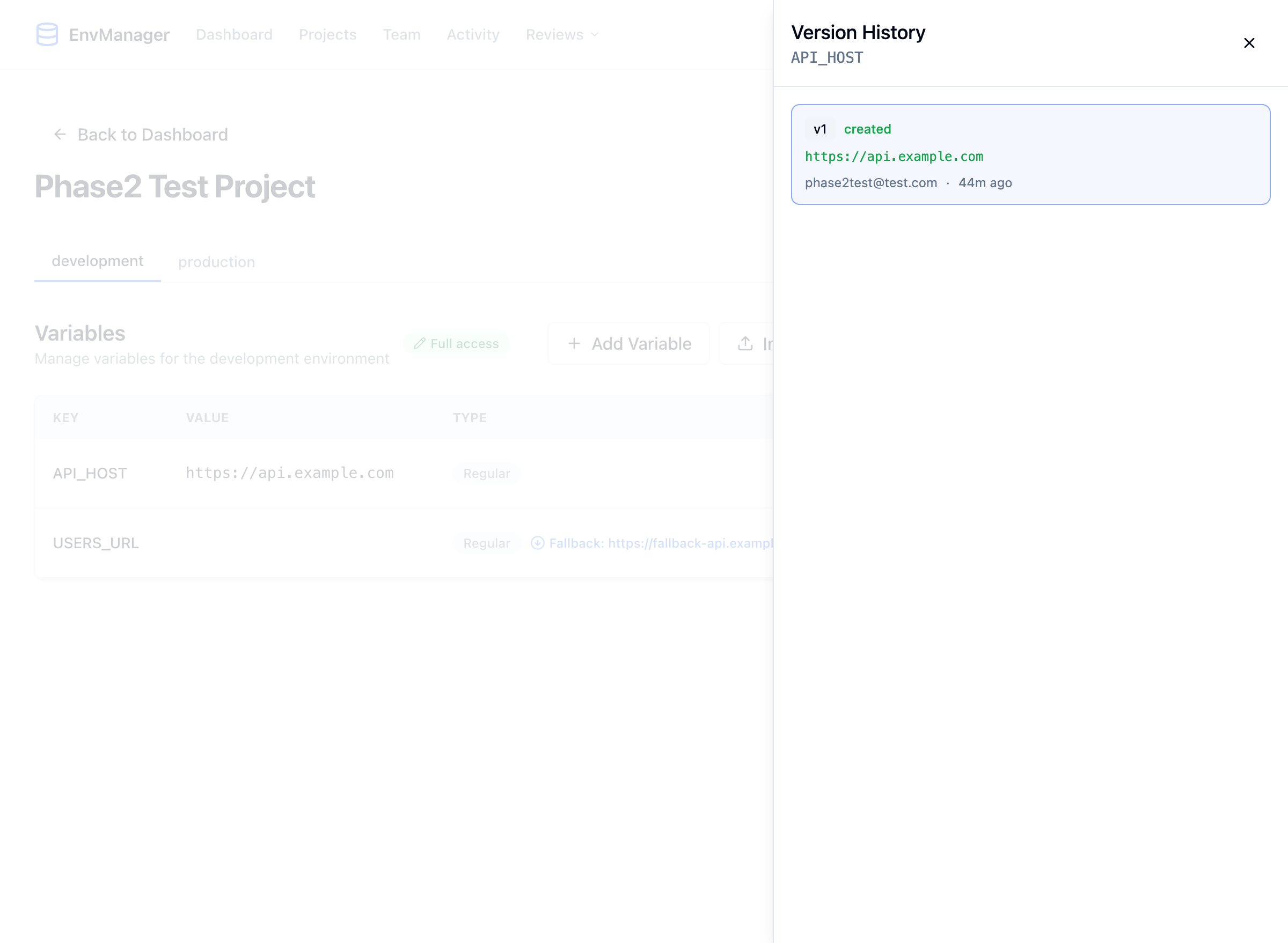
The version history panel shows every change to a variable in reverse chronological order.
Read the History
Each entry in the history shows:
| Field | Description |
|---|---|
| Version | The version number (v1, v2, v3, etc.) |
| Action | What happened — created, updated, or deleted |
| Value | The value at that version |
| User | The email of the person who made the change |
| Time | How long ago the change was made |
Rolling Back to a Previous Version
If a variable was changed by mistake, you can restore it to any earlier version.
Open the History Panel
Click the clock icon on the variable to open its version history.
Find the Version You Want
Scroll through the history to find the version you want to restore. Each entry shows the value at that point in time.
Click Rollback
Click the Rollback button next to the version you want to restore. The variable's value will be updated to match that version.
For protected environments (where approval is required), rolling back creates a pending change that must be approved before taking effect. The variable's value won't change until the rollback is approved.
What Gets Tracked
Version history records every modification to a variable:
| Action | When It's Recorded |
|---|---|
| Created | A new variable is added |
| Updated | The value is changed |
| Deleted | The variable is removed |
| Rollback | A previous version is restored |
| Bulk update | Changes from a bulk operation |
| Import | Variables added via file import |
| Snapshot restore | Values restored from a snapshot |
Tips
Use version history for debugging. When an application breaks after a deployment, check the version history of recently changed variables. The timestamps help you correlate configuration changes with incidents.
- History is permanent — Entries cannot be deleted or modified, ensuring a reliable audit trail
- Secret values are tracked — Changes to encrypted secrets are recorded, though the actual values are stored securely
- Rollback creates a new version — Rolling back doesn't erase history; it creates a new entry showing the restoration
Next Steps
Environment Snapshots
Save and restore complete environment states.
Variables Overview
Learn the basics of creating and managing variables.
Variable References
Use ${VAR} syntax to reference other variables.