Variables Overview
Environment variables are key-value pairs that configure your application's behavior. EnvManager helps you securely store, organize, and share these variables across your team.
Understanding Variables
Each variable consists of:
- Key - The variable name your application uses (e.g.,
DATABASE_URL) - Value - The configuration value (e.g.,
postgres://user:pass@host/db) - Type - Either regular (visible) or secret (encrypted)
Variables are organized by environment, so you can have different values for Development, Staging, and Production.
Before You Begin
To manage variables, you need:
- An EnvManager account
- Access to a project (either as owner, admin, or member with environment access)
See Your First Variables if you haven't set up your first project yet.
The Variables View
When you open a project, you'll see the variables table showing all variables for the selected environment. The toolbar provides quick access to add, import, export, and manage variables.
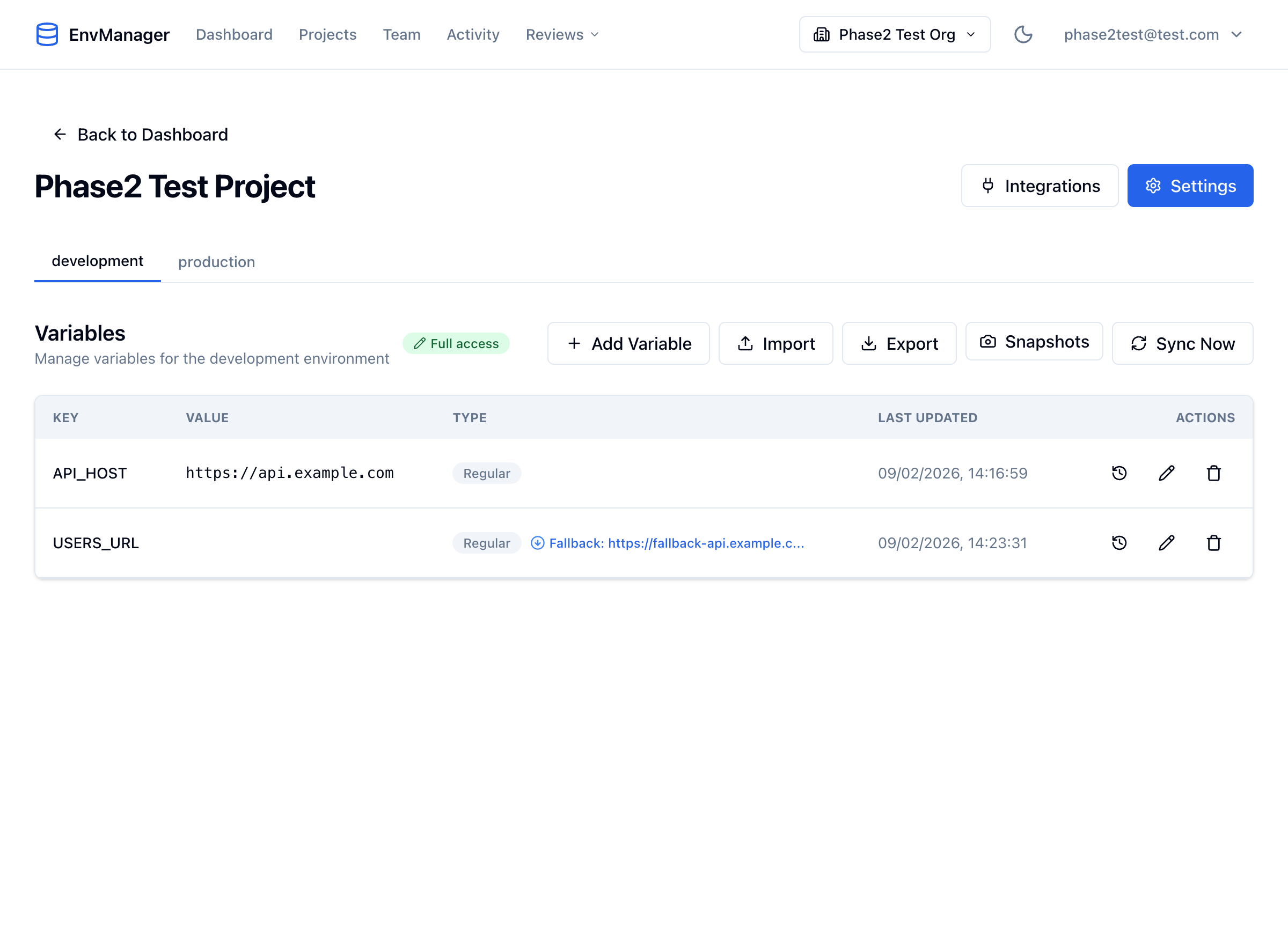
The variables table displays all variables for the selected environment, with action buttons for each variable.
Creating Variables
Navigate to Your Project
From your dashboard, click on the project where you want to add variables.
Select an Environment
Use the environment tabs at the top of the variables list to select which environment you want to add the variable to (Development, Staging, or Production).
Click Add Variable
Click the Add Variable button to open the variable form.
Enter Variable Details
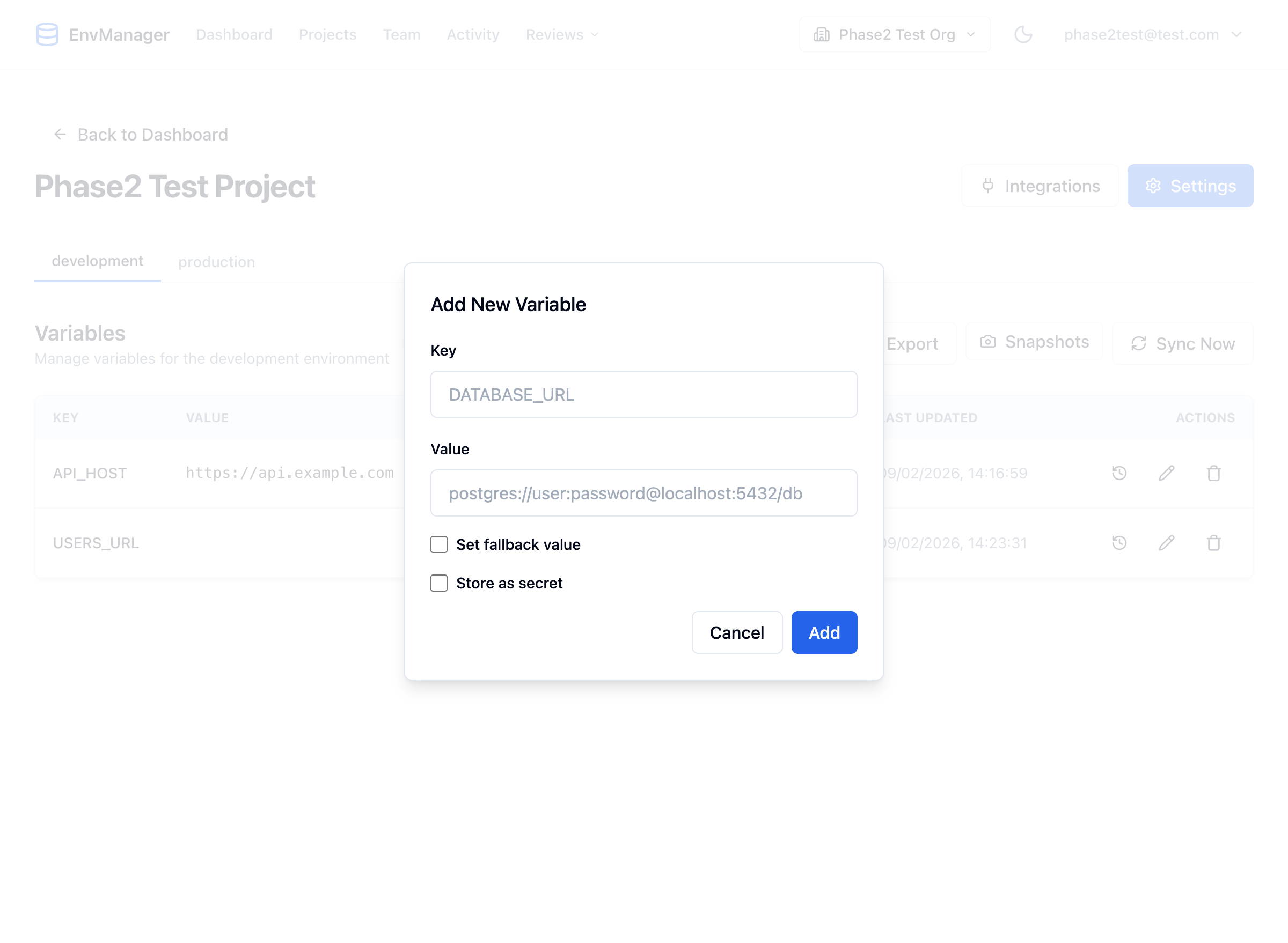
The Add New Variable dialog lets you set the key, value, and choose whether to store the variable as a secret.
Fill in the required information:
| Field | Description | Example |
|---|---|---|
| Key | The variable name (uppercase with underscores is conventional) | API_KEY |
| Value | The actual value for this environment | sk_live_abc123 |
| Store as Secret | Enable for sensitive values that should be encrypted | Enabled for API keys, passwords |
Save the Variable
Click Add to create the variable. It will appear in your variables list immediately.
Variable keys must be unique within each environment. You can have the same key with different values across environments.
Editing Variables
To modify an existing variable:
Find the Variable
Locate the variable in your list. You can scroll or use search if you have many variables.
Click the Edit Icon
Click the pencil icon on the variable row to open the edit form.
Make Your Changes
Update the value as needed. For secrets, the current value will be decrypted and shown so you can modify it.
Save Your Changes
Click Save to apply the changes. All modifications are recorded in the audit trail.
For security reasons, you cannot change a regular variable to a secret or vice versa after creation. If you need to change the type, delete the variable and create a new one.
Deleting Variables
To remove a variable you no longer need:
Click the Delete Icon
Click the trash icon on the variable row you want to remove.
Confirm Deletion
A confirmation dialog will appear showing the variable key. Click Delete to confirm.
Deleted variables are permanently removed but the deletion is logged in the audit trail for compliance purposes.
Exporting Variables
Export your variables for use in your local development or deployment pipelines.
Click Export
Click the Export button in the toolbar above your variables list.
Choose a Format
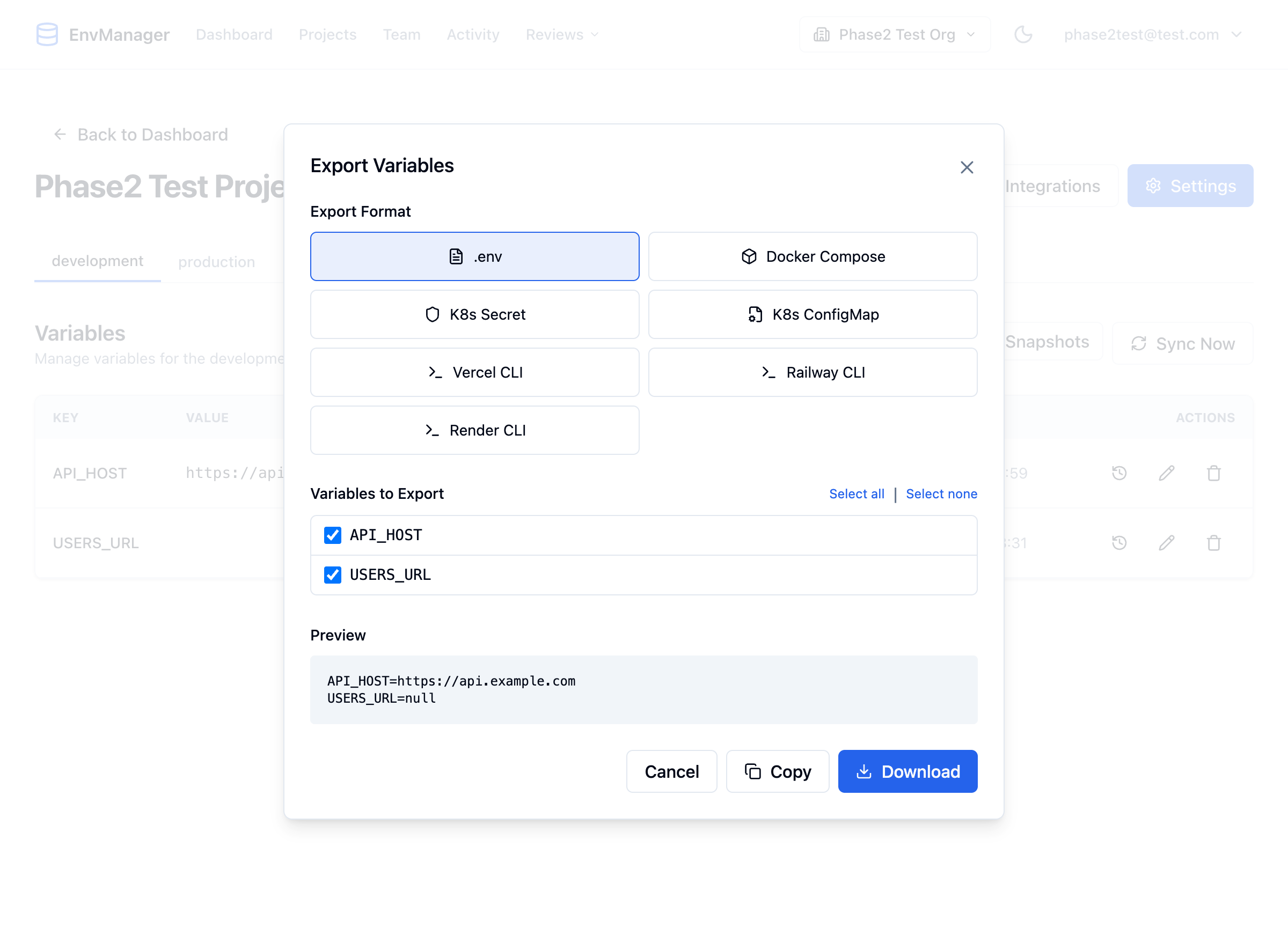
The export dialog lets you choose a format, select which variables to include, and preview the output before downloading.
Select your preferred export format:
| Format | Use Case |
|---|---|
| .env | Standard format for most applications and frameworks |
| JSON | For applications that read JSON configuration |
Download the File
The file will download to your computer, ready to use in your application.
Security Note: Exported files may contain secret values if you have permission to view them. Handle exported files securely and never commit them to version control.
Best Practices
Naming Conventions
Use clear, descriptive names with consistent formatting:
- Use uppercase with underscores:
DATABASE_URL,API_KEY - Use prefixes to group related variables:
DB_HOST,DB_PORT,DB_NAME - Be specific:
STRIPE_SECRET_KEYis better thanKEY
Common Prefixes
| Prefix | Purpose |
|---|---|
DB_ | Database configuration |
AWS_ | Amazon Web Services |
SMTP_ / MAIL_ | Email configuration |
API_ | API endpoints and keys |
AUTH_ | Authentication settings |
Keep It Clean
- Remove variables that are no longer used
- Review your variables periodically
- Use descriptions to document non-obvious values
- Keep production secrets limited to those who need access
Next Steps
Version History
Track every change and roll back to previous values.
Environment Snapshots
Save and restore complete environment states.
Variable References
Use ${VAR} syntax to reference other variables.
Fallback Values
Set default values that activate when the main value is empty.
Naming Conventions
Enforce consistent variable naming rules.
Import Variables
Bulk import from .env files with automatic secret detection.