Team Members
EnvManager is built for teams. You can invite colleagues to your organization, assign roles, and manage their access to projects and environments.
Understanding Team Structure
Your team is organized as follows:
- Organization - The top-level container (your company or team)
- Members - People who belong to your organization
- Roles - Permissions that determine what each member can do
- Environment Access - Granular control over which environments each member can view
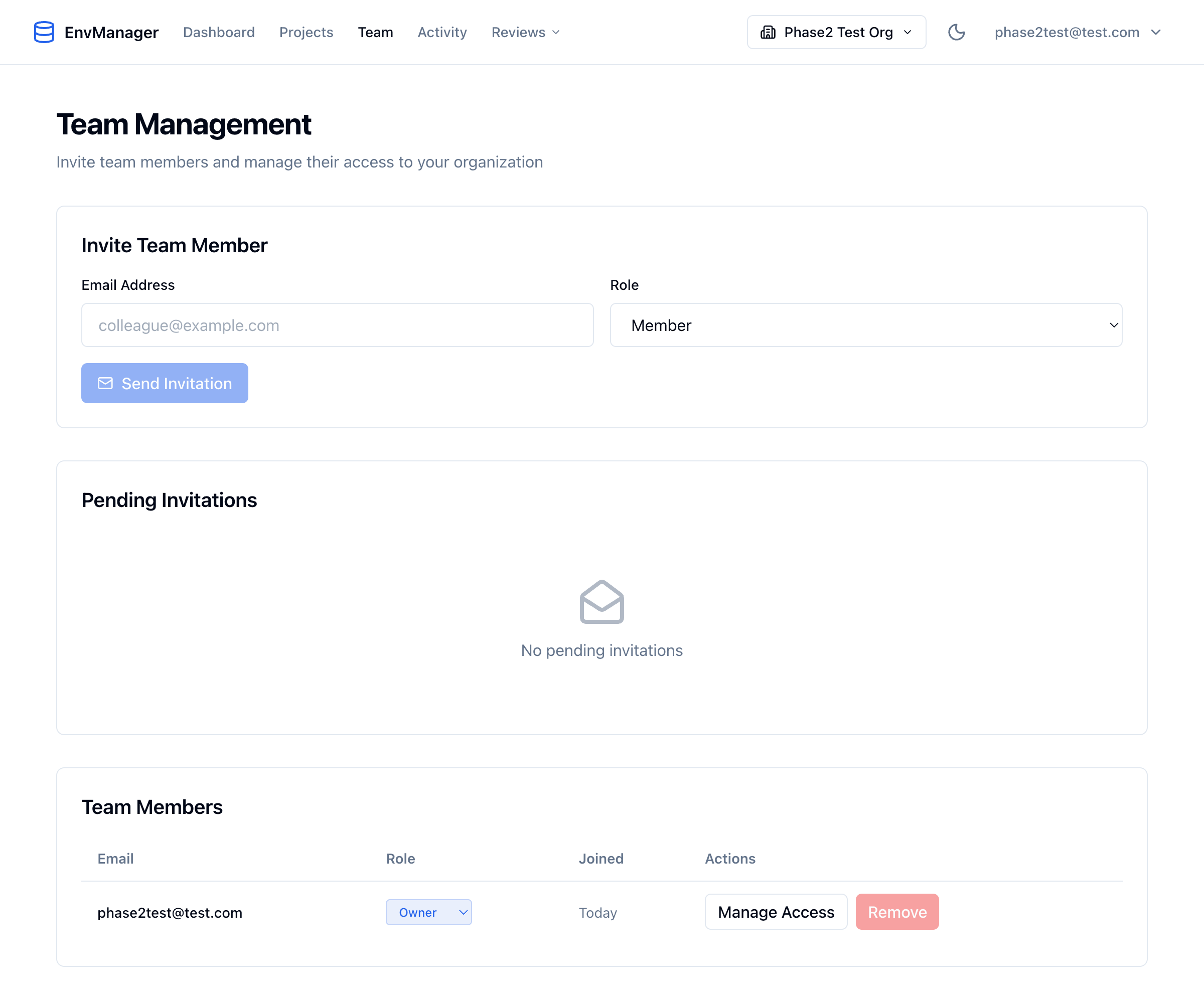
The Team Management page where you can invite members, view pending invitations, and manage existing team members.
Inviting Team Members
Go to Settings
Click Settings in the sidebar navigation from your dashboard.
Open the Organization Tab
Click on the Organization tab to view team management options.
Enter Email Address
In the "Invite Team Member" section, enter the email address of the person you want to invite.
Select a Role
Choose the appropriate role:
| Role | Best For |
|---|---|
| Member | Developers who need to view and use variables |
| Admin | Team leads who need to manage projects and other members |
Send Invitation
Click Send Invitation. The person receives an email with a link to join.
Invitations expire after 7 days. If not accepted in time, you can resend from the pending invitations list.
Managing Invitations
Viewing Pending Invitations
In the Team Members section, you can see all outstanding invitations showing:
- Email address
- Assigned role
- Expiration time
- Who sent the invitation
Resending an Invitation
If an invitation expires or the recipient can't find the email:
- Find the invitation in your pending list
- Click Resend
- A new invitation email is sent with a fresh expiration
Canceling an Invitation
To revoke an invitation before it's accepted:
- Find the invitation in your pending list
- Click Cancel
- The invitation link no longer works
Viewing Team Members
The Team Members table shows all active members:
| Column | Description |
|---|---|
| Member's email address | |
| Role | Current role (Owner, Admin, or Member) |
| Joined | When they joined the organization |
| Actions | Available management actions |
Changing Member Roles
Find the Member
In the Team Members table, locate the person whose role you want to change.
Click the Role
Click on their current role to open the role selector.
Select New Role
Choose the new role. The change takes effect immediately.
Only Owners can promote members to Admin. See Roles & Permissions for details on role capabilities.
Removing Team Members
Find the Member
Locate the member in your Team Members list.
Click Remove
Click the Remove button (trash icon) on their row.
Confirm Removal
Confirm that you want to remove this person. They immediately lose access to all projects and variables.
You cannot remove the last Owner from an organization. Every organization must have at least one Owner.
Accepting an Invitation
If you've been invited to join an organization:
- Check your email for the invitation from EnvManager
- Click the Accept Invitation link
- Sign in or create an account if needed
- You're added to the organization with your assigned role
The invitation email address must match your EnvManager account email. Contact the inviter to resend to your correct email if they don't match.
Team Management Best Practices
Handle Departures Promptly
When someone leaves the team:
- Remove them from the organization immediately
- Review any variables they had access to
- Rotate sensitive credentials if appropriate
- Check the audit log for their recent activity
Review Access Regularly
- Audit team membership quarterly
- Remove access for people who no longer need it
- Verify roles match current responsibilities
Document Decisions
Keep track of:
- Why someone has elevated privileges
- When access was granted
- Who approved the access
Next Steps
Roles & Permissions
Learn about the different roles and what they can do.
Environments
Control access at the environment level.
Working with Secrets
Understand how secret access is controlled.