
Best PowerShell Set Environment Variable Options
Compare the best PowerShell set environment variable options, from temporary assignments to persistent scopes, profiles, .env files, and CI/CD.
PowerShell environment variables can vanish when you close the shell, or expose secrets in plain text when you treat them like ordinary settings. The right choice depends on scope, persistence, and who needs access. Here are the best PowerShell set environment variable options, starting with secure team workflows and ending with quick local commands.
1. EnvManager
EnvManager is a managed way to store and sync environment variables through encrypted configuration values. It fits DevOps teams that need the same configuration across developer machines and CI/CD pipelines.
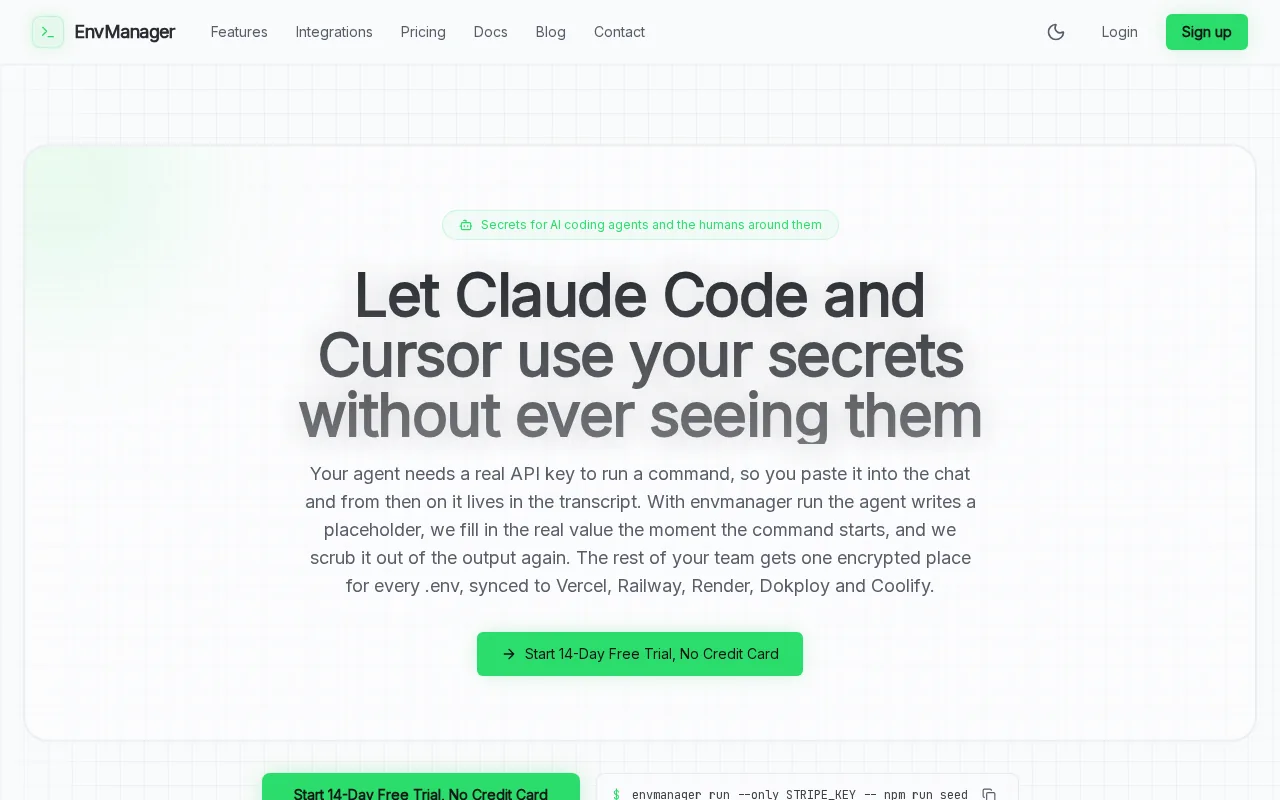
We encrypt every value with AES-256 on import. Role-based access control, or RBAC, lets you decide who can view or change a value. An immutable audit trail records access and changes, which gives security teams a clear record during review.
The key difference is scope. Native PowerShell commands change the current process or the local Windows user and machine stores. EnvManager keeps the source of truth in the cloud, then syncs the right values where a script or pipeline needs them.
That removes a common failure point: copying a production key into a local file, then forgetting where it went. JIT access can also limit how long a person receives a sensitive value.
EnvManager is the best fit when several people, hosts, or pipeline stages need shared configuration. It may be more than you need for a throwaway local script.
For a broader look at access control and secret workflows, see our comparison of environment variable management tools.
2. $Env:VAR = value, fast session-only assignments
The simplest PowerShell set environment variable command uses the$env:prefix. It is best for a quick test, a one-off script, or a child process you launch from the same shell.

$env:APP_MODE = "dev"
$env:API_PORT = "8080" Write-Output $env:APP_MODE
Environment variables are strings. Put text in quotes, even when the value looks like a number. A child process started afterward inherits the value, but a new PowerShell window does not get it.
This makes the method fast and low risk for temporary work. It also makes it a poor home for shared secrets. The value stays in the process environment, where scripts and programs can read it.
To add a folder for the current session, preserve the old value first:
$env:Path = "$env:Path;C:\Tools\bin"On Linux and macOS, path entries use a colon instead of a semicolon. Names can also be case-sensitive on those systems. Microsoft explains these process rules in its PowerShell variable documentation.
3. Set-Item, Environment provider updates
Set-Itemgives you another PowerShell set environment variable option through theEnv:provider. It suits people who prefer provider paths because the syntax feels like working with files.

Set-Item -Path Env:APP_MODE -Value "test"
Get-Item -Path Env:APP_MODE
You can also move into the provider drive:
Set-Location Env:
Set-Item APP_MODE "test"
Get-ChildItem
The command changes the current process. It does not write a permanent User or Machine value. Close the shell, and the change disappears unless another startup script recreates it.
This approach reads well in scripts that already use provider commands. It is also handy when a variable name comes from another command, since the path can be built as a string.
Take care withPath. Replacing it instead of appending to it can stop commands from being found. Save the current value before changing a shared path.
4. [System.Environment]::SetEnvironmentVariable, persistent User and Machine scopes
[System.Environment]::SetEnvironmentVariableis the native choice when a PowerShell set environment variable change must survive a shell restart. It supports Process, User, and Machine targets.
![Illustration for [System.Environment]](https://rebelgrowth.s3.us-east-1.amazonaws.com/blog-images/powershell-set-environment-variable-listicle-04-system-environment-setenvironmentvariable-article-107019.webp)
[System.Environment]::SetEnvironmentVariable( "APP_MODE", "production", "User"
)UseUserfor one account. UseMachinewhen every user and service on the host needs the value. Machine changes need permission, so an improved shell may be required.
[System.Environment]::SetEnvironmentVariable( "APP_MODE", "production", "Machine"
)
There is an important catch. A persistent change affects future processes. Your current shell may still hold its old value. Start a new session, or set the process value again when the running script needs the update right away.
PATH needs extra care. Read the existing User or Machine value, add one folder, then write the full result back. Do not blindly replace the whole path. A bad write can hide tools that Windows and PowerShell need.
$userPath = [Environment]::GetEnvironmentVariable("Path", "User")
$newPath = "$userPath;C:\Tools\bin"
[Environment]::SetEnvironmentVariable("Path", $newPath, "User")
$env:Path = $newPath
This method gives you persistence, but it does not encrypt the value or add team access rules. It relies on operating system permissions. For shared secrets across hosts, EnvManager adds the control plane that this method lacks.
5. PowerShell profile script, recreate variables at startup
A PowerShell profile is best when you want session-wide settings loaded each time your profile runs. It works well for developer tools, local paths, and harmless preferences.

Find the profile path with:
$PROFILECreate the file if needed, then add a setting such as:
$env:PROJECT_ROOT = "C:\Work\App"
$env:Path = "$env:Path;C:\Tools\bin"
Every new PowerShell session that loads that profile gets the value. This is persistent by habit, not by changing the User or Machine store. A script, service, or another shell will not necessarily load your profile.
Profiles can also make removal confusing. If a variable returns after you delete it, inspect the profile for a line that sets it again. Keep secrets out of profile files. They are plain text unless you protect the file and its surrounding workflow.
Use a profile for personal convenience. Use a managed secret store when the value belongs to a team or pipeline.
Our guide to PowerShell environment variable persistence compares profile-based settings with User and Machine scopes.
6. Environment.SetEnvironmentVariable Method, programmatic process configuration
The Environment.SetEnvironmentVariable method is useful when another PowerShell command or script already handles environment variables. It can target Process, User, or Machine, depending on the third argument.

$name = "BUILD_LABEL"
$value = "local"
[Environment]::SetEnvironmentVariable($name, $value, "Process")
With the Process target, the change applies only to the PowerShell process that runs the method. It is close to$env:BUILD_LABEL = "local", but it fits code that handles variable names and scopes as data.
$scope = "User"
[Environment]::SetEnvironmentVariable( "BUILD_LABEL", "shared-local", $scope
)
For programmatic work, keep the scope explicit. That makes code review easier and reduces the chance of writing a machine-wide setting by accident.
This method still has the same security limit as the other native choices. It controls location and persistence, but it does not encrypt values at rest or provide an audit trail. A secret passed through an environment variable may also be visible to the process that reads it.
That distinction matters in CI/CD. A pipeline can mask a secret in logs while the value remains plain text in process memory. Use a secret manager for storage, then inject only the value needed by the job.
7. Get-ChildItem Env:, inspect and verify existing variables
Get-ChildItem Env:is the quickest way to inspect the values visible to the current PowerShell process. Use it before and after a change.

Get-ChildItem Env:
Get-ChildItem Env:Path
$env:Path
The first command lists names and values. The second narrows the result to one variable. The short form returns only the value, which is better inside a script.
PATH can be hard to read as one long line. Split it into entries:
$env:Path -split [IO.Path]::PathSeparatorVerification should match the scope you changed. A User value written to Windows storage may not appear in an existing shell until you start a fresh process. A child shell launched from the current shell may inherit the old process value instead.
Never print a secret during verification. Check that it exists, or compare a safe hash or length when your workflow allows it.
8. Process-level environment variable creation
A process-level environment variable is useful for a quick one-off script. Its scope is limited to the current PowerShell process, so it is temporary.

$Env:BUILD_LABEL = "local"
Get-Item -Path Env:BUILD_LABEL
The variable is available in the current session and to child processes started afterward. It is not a permanent Windows User or Machine setting.
UseSet-Itemwhen the name may already exist. A process-level assignment is appropriate when you want a temporary entry for a quick one-off script.
Do not put API keys in a script committed to source control. For team workflows, EnvManager stores encrypted configuration data and controls who can sync it.
9. Process-scoped variable cleanup
A process-scoped environment variable can be cleared when a temporary setting should end before the shell closes.

Clear the process-scoped BUILD_LABEL variable
Verify the variable is no longer present
The test returns false when the current process no longer has that entry. This does not remove a User or Machine definition stored outside the process.
For a persistent Windows value, clear the matching scope:
[Environment]::SetEnvironmentVariable("BUILD_LABEL", "", "User")Then start a genuinely new process to verify the result. Check the profile too. A profile line can recreate a variable even after you remove its stored definition.
On newer PowerShell versions, setting a process variable to$nullremoves it, while an empty string can mean an existing variable with no text. A process-scoped cleanup approach avoids that ambiguity for current-session cleanup.
10. Configuration-file workflows, scripts, CI/CD, and cross-platform use
Configuration files are useful when a project needs a named set of values rather than a single shell assignment. They also make it easier to separate configuration by stage, such as local, test, and production.

A basic PowerShell script can read simple key-value lines, but parsing rules matter. Quoting, comments, blank lines, multiline values, and special characters can break a homemade loader. Do not write a parser for production secrets unless you have tested those cases.
Keep secret files out of source control. Use a non-secret example file to show required names, then inject real values through a controlled system.
On Windows, the environment-variable API can persist User or Machine values. On Linux and macOS, persistent setup depends on shell startup files. Common locations include~/.profile,/etc/environment, and PowerShell's own profile. The file that runs depends on how the shell starts.
CI/CD needs a stronger split:
- Store the source value in a secret manager.
- Grant the job only the access it needs.
- Inject the value at run time.
- Prevent commands from printing it.
- Rotate it without editing every script.
EnvManager fits this model by keeping encrypted configuration files under team control, then syncing values to local machines and pipelines. Native PowerShell remains useful for consuming the values inside a job.
That pairing is usually better than forcing one command to handle storage, access, persistence, and execution at once.
PowerShell Set Environment Variable Comparison Table
Use this table to match the method to the job. “Temporary” means the current process can see the change, while “persistent” means a later process can load it through a store or startup file.
| Option | Best use | Scope | Survives restart | Secret controls |
|---|---|---|---|---|
| EnvManager | Team and CI/CD configuration | Multi-machine pipeline workflow | Yes | Encryption, RBAC, audit trail |
| $env:NAME | Quick script test | Process | No | OS permissions only |
| Set-Item Env: | Provider-based update | Process | No | OS permissions only |
| [Environment] method | User or machine setting | Process, User, Machine | Yes for User or Machine | Machine changes need permission |
| PowerShell profile | Personal startup settings | Profile session | Yes when profile loads | Plain-text file controls |
| Process-scoped assignment | Quick one-off script | Process | No | Temporary |
| Session-wide variables | Variables loaded at startup | Process | Yes when profile loads | Profile-based |
What to Look for When Choosing a PowerShell Environment Variable Method
Start with the lifetime of the value. Pick$env:orSet-Itemwhen the setting should die with the process. Pick a method that supports persistent User or Machine configuration when a host needs a persistent value.
Then ask who owns the value. A personal PATH entry belongs in a profile or User scope. A production credential needs controlled storage, limited access, and a record of changes.
Finally, check the execution boundary. If a CI job runs on several agents, a local profile cannot be your source of truth. EnvManager is the better fit when encrypted storage and repeatable sync matter.
FAQ
How do I set an environment variable in PowerShell?
Use$env:NAME = "value"to set a variable for the current PowerShell process. For example,$env:APP_MODE = "dev". The value is inherited by child processes, but it disappears when the shell closes. Use [System.Environment]::SetEnvironmentVariable for a persistent User or Machine setting.
Why does my PowerShell environment variable disappear?
Your PowerShell environment variable disappears because a$env:assignment changes only the current process. A new shell builds its environment again from stored User and Machine values. Add the setting to a profile for personal startup behavior, or use a managed .env workflow when several machines need the same value.
How do I permanently set PATH in PowerShell?
Use[Environment]::SetEnvironmentVariable("Path", $value, "User")for your account, or replaceUserwithMachinefor a system-wide setting. Read and preserve the existing PATH before appending a folder. Start a new process afterward, because open shells may retain the old value.
What is the difference between $env and Set-Item?
$env:NAME = "value"andSet-Item Env:NAME "value"both change the current PowerShell process. The difference is style: the first uses variable syntax, while the second uses the Environment provider. Neither method creates a persistent User or Machine value by itself.
Are PowerShell environment variables secure for passwords?
PowerShell environment variables are not a secure password store. Native commands rely on operating system permissions and may expose values to the process that reads them. For shared credentials, store encrypted values with access rules and audit records, then inject only the required value during the script or pipeline run.
Conclusion
Use$env:for quick local work and the [System.Environment]::SetEnvironmentVariable method for persistent system-wide configuration. When secrets must move across people, machines, and CI/CD stages, choose EnvManager as the source of truth, then run your PowerShell scripts against the values they need.