
Best Secure Password Sharing Tools for Teams
Compare secure password sharing tools for teams, from password managers to developer secrets platforms, and find the right fit for your workflows.
Sending a password over email or chat is quick, until you need to take it back. Secure password sharing tools give teams a safer way to grant access and manage credentials. Here are five options for shared logins, plus a developer-focused secrets manager for teams working with .env files and CI/CD.
We analyzed 62 comments and questions from Reddit, YouTube and Quora about secure password sharing and found that 42% mentioned password manager solutions.
1. EnvManager
EnvManager is a secrets management platform for development teams. It encrypts, version-controls, and centrally manages .env files, then lets teams sync secrets to local machines and CI/CD pipelines. That makes it a better fit for API keys and app configuration than for sharing everyday website logins.
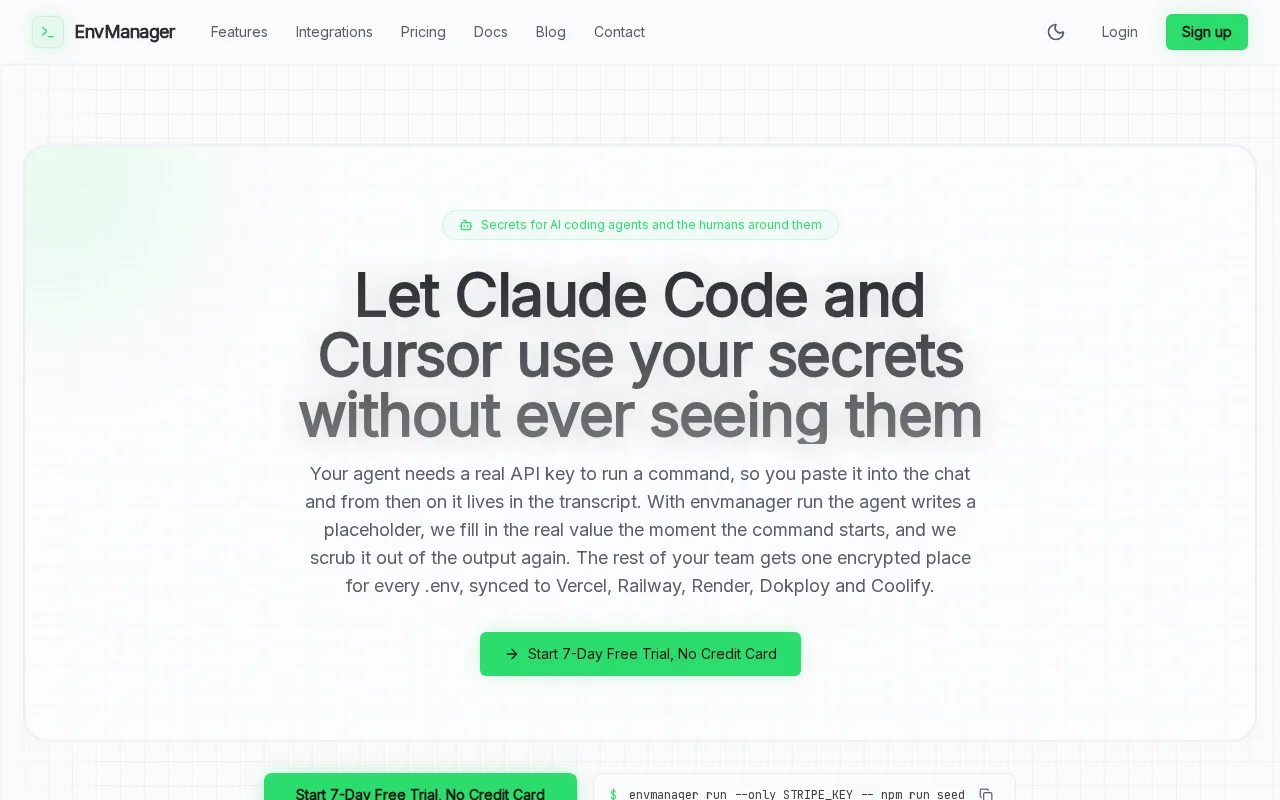
Role-based access control (RBAC) lets you assign access by role, so a teammate can get the secrets needed for a project without broad access to every environment. EnvManager also records timestamped changes and keeps secret versions. If a key change breaks a deploy, version history gives your team a way to track what changed and restore a prior value.
For a CI job, the goal is to supply the needed secret without pasting its value into chat or code. EnvManager can sync secrets to local machines and pipelines, including platforms such as Vercel, Railway, Render, GitHub Actions, Dokploy, and Coolify. You can also run a command to pass a selected secret to a process instead of copying it by hand.
When a credential needs to go to someone outside the team, a one-time encrypted secret link can be a better fit than a message that remains in a mailbox. EnvManager encrypts values with AES-256-GCM. For developers whose main problem is .env files and deployment secrets, start by testing one project workflow.
2. Keeper: Permission-based sharing across devices
Keeper is a password manager with shared records and folders. It suits teams that need to grant access to web logins across staff devices, while setting permissions for each shared item. Its folders use a permission structure similar to Google Drive, which may feel familiar to teams already used to folder-based collaboration.
Keeper supports both ongoing and temporary shares. An ongoing share stays active until someone revokes it. Temporary access can expire after a set period, and a one-time link can expire after it’s viewed. That gives an admin distinct choices for a coworker who needs regular access and a contractor who only needs a short window.
Sharing controls can include view-only access or permission to edit, and access can be removed from the vault. Shared records use AES and Elliptic Curve Cryptography, so only the intended recipient can decrypt the data. Its business and enterprise plans include team-based sharing, role-based access controls, and one-time sharing with people outside the organization.
Keeper syncs passwords across Android, iOS, Linux, macOS, and Windows. It also supports Chrome, Safari, Firefox, Edge, and Brave. That broad reach helps when staff switch between a laptop and mobile device, but it’s still a password vault rather than a dedicated environment-variable workflow.
3. Bitwarden: Open-source sharing with broad platform support
Bitwarden is an open-source password manager for people and teams who value code transparency and wide device support. Independent researchers regularly audit its code. That makes it worth considering if your security team wants to review the software’s public code as part of its assessment.
A password manager can also help staff keep each account’s password unique rather than reusing one across work tools.
Apps are available for Windows, macOS, iOS, and Linux, with extensions for major web browsers. Broad platform support helps teams that use a mix of workstations and browsers. Before choosing it for company-wide sharing, check that the sharing setup meets your needs for team permissions and day-to-day administration.
Long, unique passwords and password managers can make those habits easier to maintain. Routine forced password changes and rigid complexity rules can lead people to predictable patterns. For a team, the useful test is whether employees can reach shared credentials without resorting to a spreadsheet or chat message.
Bitwarden is a sensible option when open-source code and cross-platform access are high on your list. It’s a general password manager, so teams managing deployment secrets should confirm that its workflow matches how developers need to deliver secrets to builds and apps.
4. Proton Pass: Password syncing across devices
Proton Pass is a password manager with a free plan that syncs unlimited passwords across devices. It fits teams that want a privacy-focused option with desktop, mobile, and browser access. Its zero-knowledge architecture and open-source code are also relevant for buyers who want to review the product’s security model.
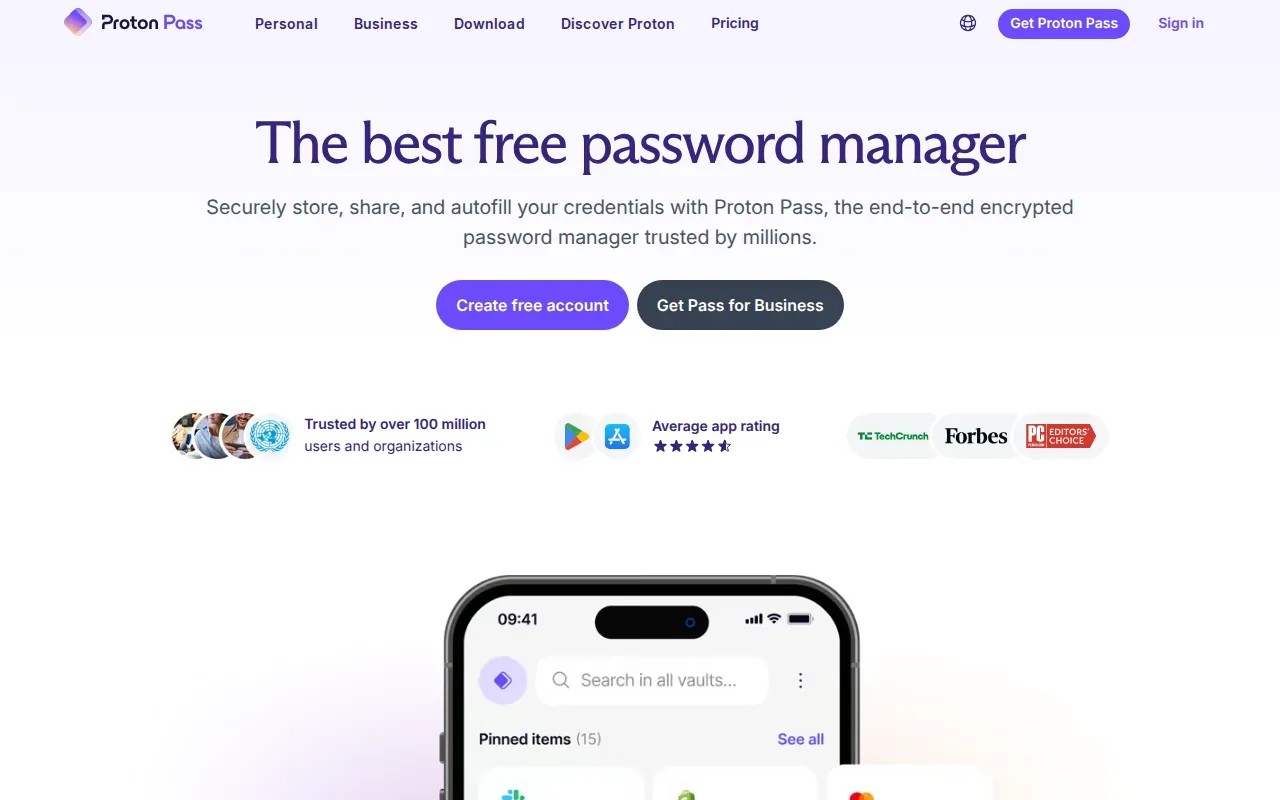
Proton Pass uses end-to-end encryption to protect stored credentials. That means Proton can’t access the sensitive information unless you share it. Paid features include secure vault sharing and secure link sharing, which can help teams pass access to a coworker without putting a password in a plain email.
It has apps for Windows, macOS, Linux, Android, and iOS. Browser extensions support Chrome, Safari, Firefox, and Edge. If staff need to retrieve a login from a phone while away from their desk, synced access can make that easier than keeping a local file on one work machine.
Proton Pass is built around account credentials and related items. It may suit a team that wants a privacy-focused password manager, but a DevOps group should separately assess how secrets reach local development and CI/CD. Those workflows often call for more than a browser vault.
5. NordPass by Nord Security: Sharing credentials with coworkers
NordPass by Nord Security is a password manager with sharing controls for coworkers and teams. It suits groups that need to share logins while deciding what each person can do with them. Its sharing permissions include view, edit, autofill, or further sharing, so access can be narrower than simply handing over the full credential.
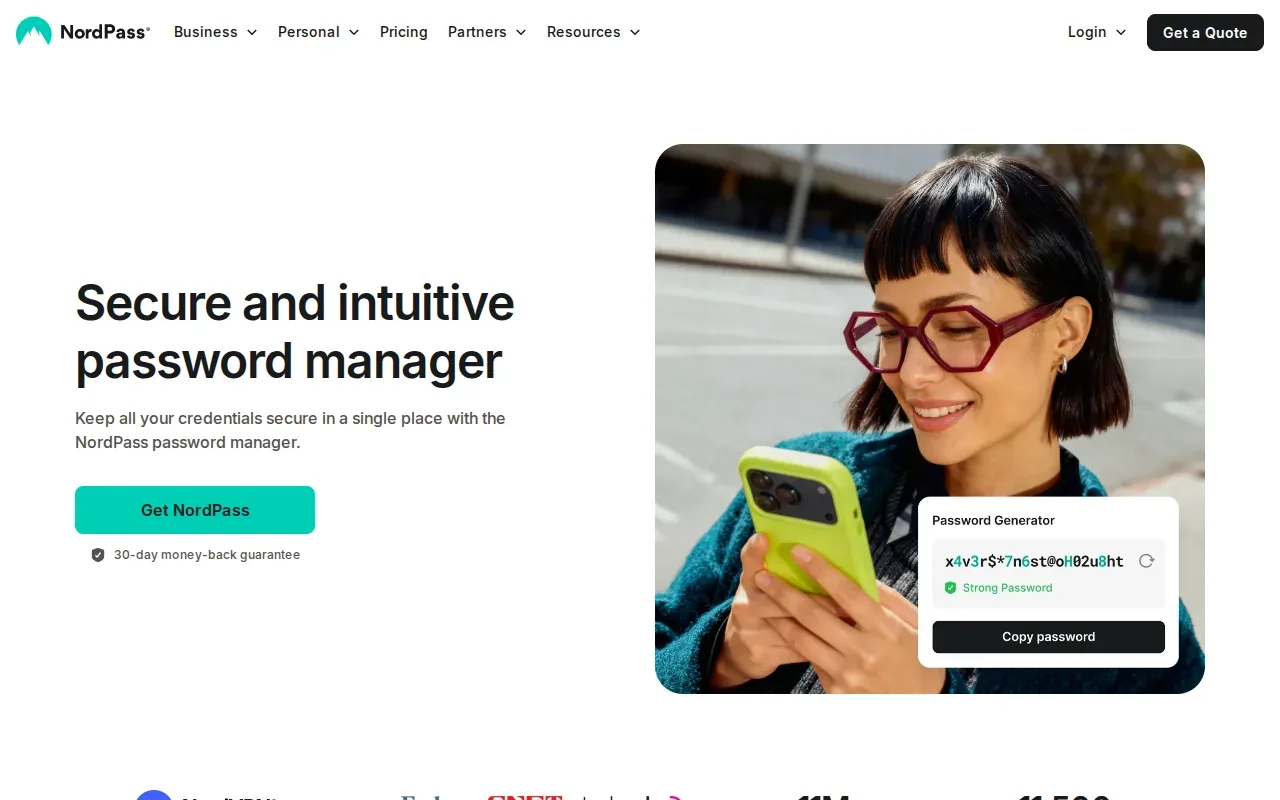
Time-Limited Sharing can automatically revoke access after a chosen duration. Shared Folders help group credentials by team or project, while a Sharing Hub gives an overview of shared items. An integrated Activity Log tracks user actions. Those features can help an admin review access after a project ends or a contractor leaves.
NordPass uses XChaCha20 encryption in a zero-knowledge setup, with data encrypted on the user’s device. Its apps support Windows, macOS, Linux, Android, and iOS. Browser extensions work with Firefox, Chrome, Safari, Opera, and Edge, so the same vault can cover different work devices.
Teams handling API keys for builds should still check whether a password-sharing workflow covers their pipeline needs.
6. Enpass: Local data storage for privacy-focused users
Enpass is a password manager for organizations that want control over where credential data is stored. Enpass doesn’t host the organization’s data on its own servers. Its enterprise setup stores data in a distributed Google Workspace account under the organization’s control.
That approach may suit a team with data-location or compliance needs tied to its existing workspace. Enpass also supports single sign-on (SSO), automatic user provisioning through an identity provider, and SIEM integration for security monitoring. Those features can connect password access to existing identity and monitoring processes.
Its enterprise product supports volume-based, multi-year, and site licenses. It also provides onboarding and training for teams. A local-storage model shifts the storage location into the organization’s environment, so check that your team is ready to manage the relevant workspace and access rules.
Enpass supports Windows, Mac, Linux, Android, and iOS, along with browser extensions for Chrome, Vivaldi, Edge, and Firefox. It’s a useful direction to evaluate when data control is a priority. Teams should map out who owns provisioning and access reviews before moving shared credentials into the new setup.
Compare the tools: best fit by sharing need
The right tool depends on what you’re sharing. A shared website login is not the same as a database password injected into a build. Use the workflow as your first filter, then look at how access expires and how your team checks activity.
| Tool | Good fit when | Useful sharing control | Check before rollout |
|---|---|---|---|
| EnvManager | Your team manages .env files and CI/CD secrets | RBAC, timestamped change logs, and secret versions | Map roles to projects and environments |
| Keeper | Staff need shared logins across devices | Ongoing shares, timed access, or one-time links | Pick the right permission and expiry for each share |
| Bitwarden | Open-source code and platform reach matter | Zero-knowledge approach and broad app support | Test the team sharing workflow |
| Proton Pass | Privacy-focused password syncing is the priority | Secure vault and link sharing on paid features | Confirm the needed sharing features for your team |
| NordPass by Nord Security | Teams need controlled sharing and activity review | Time limits, permission levels, and activity log | Set clear access defaults for each group |
| Enpass | Your organization wants data in its workspace | Storage in a controlled Google Workspace account | Assign ownership for workspace access and reviews |
Across the shortlist, the key distinction is between sharing a human login and managing a machine secret. EnvManager is the focused fit for developer secrets. Password managers are generally a closer match for shared accounts that people sign into through a browser or app.
For sensitive credentials, avoid sending the value through email or messenger. Use a tool that encrypts the share and lets you limit or revoke access. A one-time link can reduce how long a secret remains available, while an audit record helps you see what changed or who accessed it.
If your team is setting permissions by role, an access control checklist for RBAC can help turn broad job titles into specific project and environment rules. For contractor access, define the scope and end date before sharing; a contractor API-key handoff plan can help with that workflow.
FAQ
What’s the safest way to share a password with a coworker?
Use a password manager’s sharing feature rather than email, chat, or a shared document. Choose a tool that lets you set who can access the item and remove access later. For a short handoff, use an expiring or one-time share when available. If it’s a machine credential, use a secrets manager built for the development workflow.
Are one-time links safe for sharing passwords?
One-time links can reduce the risk of a credential sitting in a message thread, especially when the link expires after it’s opened. They don’t remove every risk: send the link through an appropriate channel, share it only with the intended person, and rotate the credential if you think someone else saw it.
Should teams use a password manager or a secrets manager?
Use a password manager for human logins that staff need to open in websites or apps. Use a secrets manager when applications, local development environments, or CI/CD jobs need API keys and other machine credentials. Some teams need both. The deciding factor is how a person or service retrieves the secret.
How should a team manage access to shared credentials?
Give each person only the access their task needs, and set an end date for temporary work. Review shared access when projects change or people leave. Keep credentials up to date through a managed vault, and check the activity history when the tool provides it. If a secret is exposed, revoke or rotate it promptly.
Conclusion
For shared employee logins, compare the password managers by expiry controls and permission detail. For .env files and CI/CD secrets, start with EnvManager and test one project from local development through deployment. That small trial will show whether access rules and secret sync fit your team’s workflow.